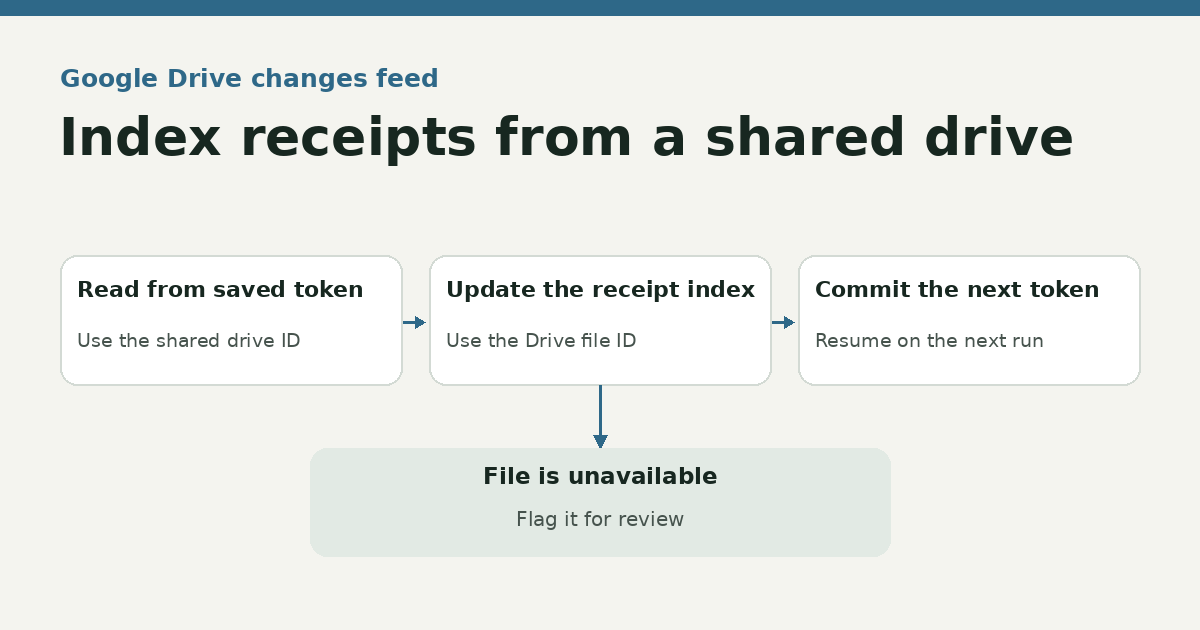
If a bilingual shop team in Korea files receipt PDFs in a Google Workspace shared drive, use that drive’s own change feed to update a small receipt index. Save a cursor for that drive, update rows by Drive file ID, and move the cursor only after the index changes are recorded. The index can show which files are ready for bookkeeping without opening or copying every PDF on each run. [1][2][3]
Build the baseline before polling
Choose one shared drive and the receipt folders inside it. Decide what the index needs, such as an internal file reference, first-seen timestamp, handling status and the responsible team. Avoid copying PDF contents or sensitive file names into broad notifications. Use an explicit list of receipt folder IDs. If your scope includes whole subtrees, reconcile folder moves against a fresh listing before treating membership as current.
Obtain a drive-specific start page token before listing the existing receipt files for the initial index. Finish the listing and then replay changes from the saved start token so changes during the listing can be picked up. Use the Drive file ID as the row key so the same file can appear in both the snapshot and the replay without creating a second row. [1][2][3]
Process and commit each page
- Call
changes.listwith the saved token, the targetdriveId,supportsAllDrives=true, andincludeItemsFromAllDrives=true. A user’s general feed is insufficient for a complete view of member changes in a specific shared drive. [1][2] - Update the index with current state from the feed. If the file is now out of scope or unavailable, mark it for review. Keep the old row available for reconciliation. The feed alone cannot tell you whether an unavailable file was physically deleted, moved, or became inaccessible. [1]
- After the page is recorded, save its
nextPageTokento continue. At the end, savenewStartPageTokenfor the next poll. If the index and cursor are in different systems, make repeated row updates safe and resume from the last cursor you can prove was committed. [3]
Test interruptions before indexing real documents
Use a separate shared drive with blank sample PDFs. Test an addition, a move out of the receipt folder, a loss of access and an interruption after a page is applied but before its token is saved. Verify that replay settles on one row per file ID and that unclear removals appear as exceptions. If the cursor is lost, pause output and rebuild a fresh baseline with the same process. Leave filing, notification, and deletion actions disabled until someone reviews the reconciliation results.
Official sources and claim checks
Checked on November 15, 2026 (KST).
- Each shared drive has its own change log. A removed item may mean loss of access or a move, so the feed alone cannot establish permanent deletion. Google Drive API, Track changes for users and shared drives
- The guide documents requesting a drive-specific start token and listing changes with driveId, supportsAllDrives and includeItemsFromAllDrives. Google Drive API, Implement shared drive support
- nextPageToken continues a paginated feed and newStartPageToken starts the next polling cycle. Google Drive API, Retrieve changes
Testing and open checks
Workspace edition availability, administrator settings, file access, and a live Drive API integration were not tested. This article does not establish accounting retention periods or tax deductibility. No production account was exercised. Procedures and test cases are based on the cited documentation and use synthetic data.