Keep your menus in English and add Korean typing
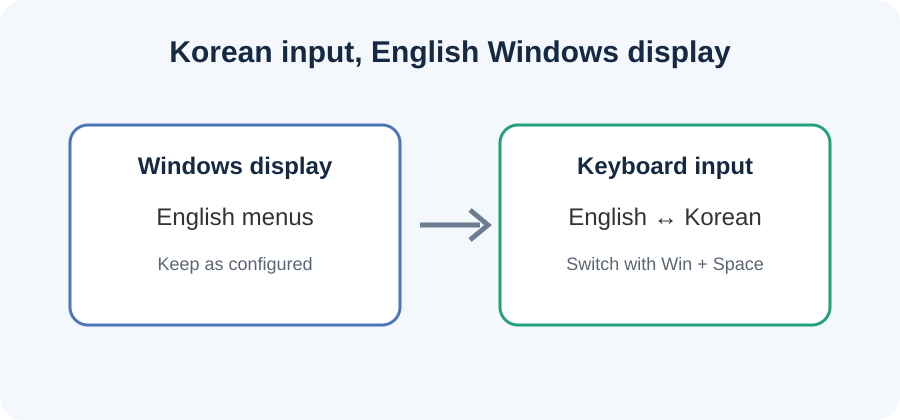
You can type Korean in Windows 11 without changing the language of Windows menus. Add Korean as an input language, keep English as the display language, and switch between keyboard layouts when you need to enter a Korean business name, address, or message.
Add the Korean input method
- Open Settings.
- Select Time & language, then Language & region.
- Select Add a language, search for Korean, and choose it.
- Review the optional language features. If you only need to type Korean, you generally do not need to change your Windows display language.
- Select Install and wait for the Korean input option to appear.
The exact wording can vary slightly by Windows update. Microsoft distinguishes the display language from keyboard and input layouts. Its Korean IME documentation says Korean typing does not require changing the current Windows display language.
Switch between English and Korean
Press Windows key + Spacebar to cycle through installed keyboard layouts. You can also select the input indicator in the taskbar and choose the layout there. The indicator tells you which layout is active.
Windows may show the Korean layout as installed while the IME is still in English input mode. If Korean letters do not appear, check both the selected layout and the IME mode indicator. On some keyboards, a dedicated Korean/English key or a right Alt key changes the IME mode; key behavior depends on the keyboard and configuration.
The common Korean layout is 2-Set (Dubeolsik). A standard English QWERTY keyboard can use it; printed Hangul keycaps are helpful but not required. For a new user, keep a 2-Set layout chart nearby and test a short phrase in a blank document before filling in a customer form.
Troubleshoot the common problems
- Korean is missing from the switcher: Return to Language & region and confirm that Korean is installed. Press Win + Space again after installation.
- The switcher does nothing: Windows may have only one installed keyboard layout. Confirm that both English and Korean appear in the list.
- Menus changed unexpectedly: Check Settings > Time & language > Language & region and confirm that English remains selected under Windows display language.
- You see English letters while Korean is selected: Toggle the IME’s Korean/English mode using the taskbar indicator or the keyboard shortcut shown for your device.
- You are using a company-managed PC: An administrator may restrict language installation. Ask the device administrator if the install option is blocked.
A quick business-use check
Before sending a Korean invoice request or entering a Korean recipient name, type a sample into a draft and verify the syllables, spacing, and punctuation. Switching input methods does not translate text or validate a Korean address.
Evidence labels: Microsoft’s Windows and Korean IME instructions support the settings path and layout switching. The suggestion to test text before submitting a business form is practical guidance, not a product test. This article was prepared from official documentation; no Windows device was tested for this draft.
Sources and verification
- Microsoft, Manage the language and keyboard/input layout settings in Windows — checked November 15, 2026.
- Microsoft, Korean IME setup documentation — checked November 15, 2026.