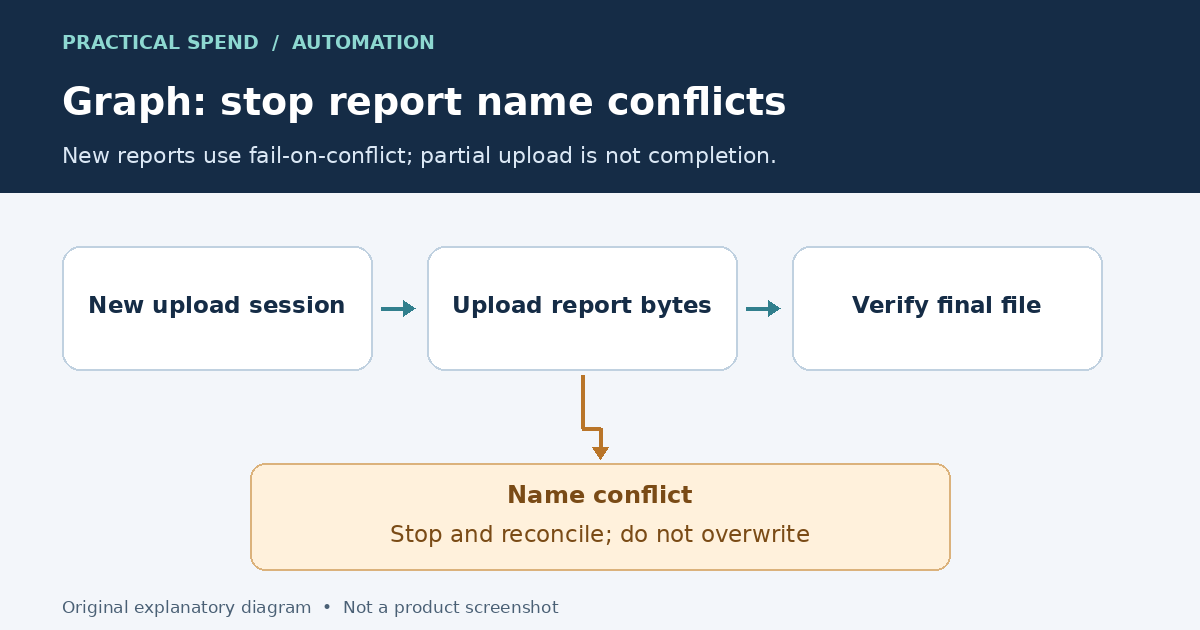
For a new daily report uploaded through Microsoft Graph, use a fail-on-name-conflict policy and send collisions to review. Do not automatically switch to replace. This protects the intended workflow from treating an already occupied report name as permission to overwrite it; it is not a general lock on existing files.
Establish a new-file destination
Imagine an English-speaking operations lead in Korea uploading a fictional maintenance summary. Keep the reporting date, branch, revision, intended parent folder ID, and original content digest in a local job ledger. Use Asia/Seoul when deriving the business date; a UTC date can label a late-night Korean report incorrectly.
Create a new-file upload session using the parent-folder-and-filename route. Set item.@microsoft.graph.conflictBehavior to fail explicitly.[1] For this workflow, choose a revisioned name such as seoul-maintenance-2026-11-23-r01.pdf. Avoid the update-existing-item route. A correction should receive an approved new revision instead of silently changing an older report.
Track transfer separately from completion
Store the session privately. Its upload URL is preauthenticated and must not appear in a shared log or staff notification.[1] Keep the local file unchanged throughout the transfer so the ledger’s digest continues to describe the intended bytes.
Follow the documented sequential fragment upload procedure. A 202 Accepted response means more transfer work remains; normal completion returns 200 OK or 201 Created with file metadata.[1] Keep the job UPLOADING until the destination can be checked.
Record the completed item ID, parent, name, and size. Before distributing the link, download the synthetic test report and compare its bytes with the original. Treat this verification as a workflow acceptance requirement, not a checksum guarantee supplied by Graph.
Handle collision and ambiguous outcomes
A name collision can surface at the final upload stage as 409 with nameAlreadyExists.[1] Leave the existing file intact. Investigate whether it is this job’s earlier successful report or another report using the same name. Filename equality alone is insufficient evidence that the content matches.
After a timeout, query session status before retransmitting. For an expired or missing session, reconcile the intended destination before creating a replacement session; the original upload may already have completed. The documentation describes restarting after a session 404.[1] Your reconciliation prevents that restart from becoming a blind second attempt.
Do not resolve a conflict by adding an arbitrary suffix automatically. Have the operator approve either reuse of the verified completed item or a new report revision.
Test before operational use
In a sandbox folder, test a clean upload, a preexisting name, a collision introduced during transfer, an interrupted fragment, and an uncertain final response. Repeat with an expired session. Confirm that no collision enters an overwrite path and that staff receive a link only after the ledger identifies the verified final item.
Official sources and claim mapping
Documentation checked: November 23, 2026 (KST). Each source below was successfully retrieved and read for the listed claims. No inaccessible source is marked verified. Documentation review verifies the described product behavior; it does not establish that this workflow was executed.
- Microsoft Learn — driveItem: createUploadSession — Claims supported: New-file upload path, conflictBehavior, partial versus final responses, status recovery, session expiration, and final nameAlreadyExists errors.
Recommended ledger fields, state names, example identifiers, acceptance criteria, and recovery policies are the author’s operating design, not claims that the vendor supplies these features automatically. No plan entitlement, price, legal compliance, or performance guarantee is asserted.