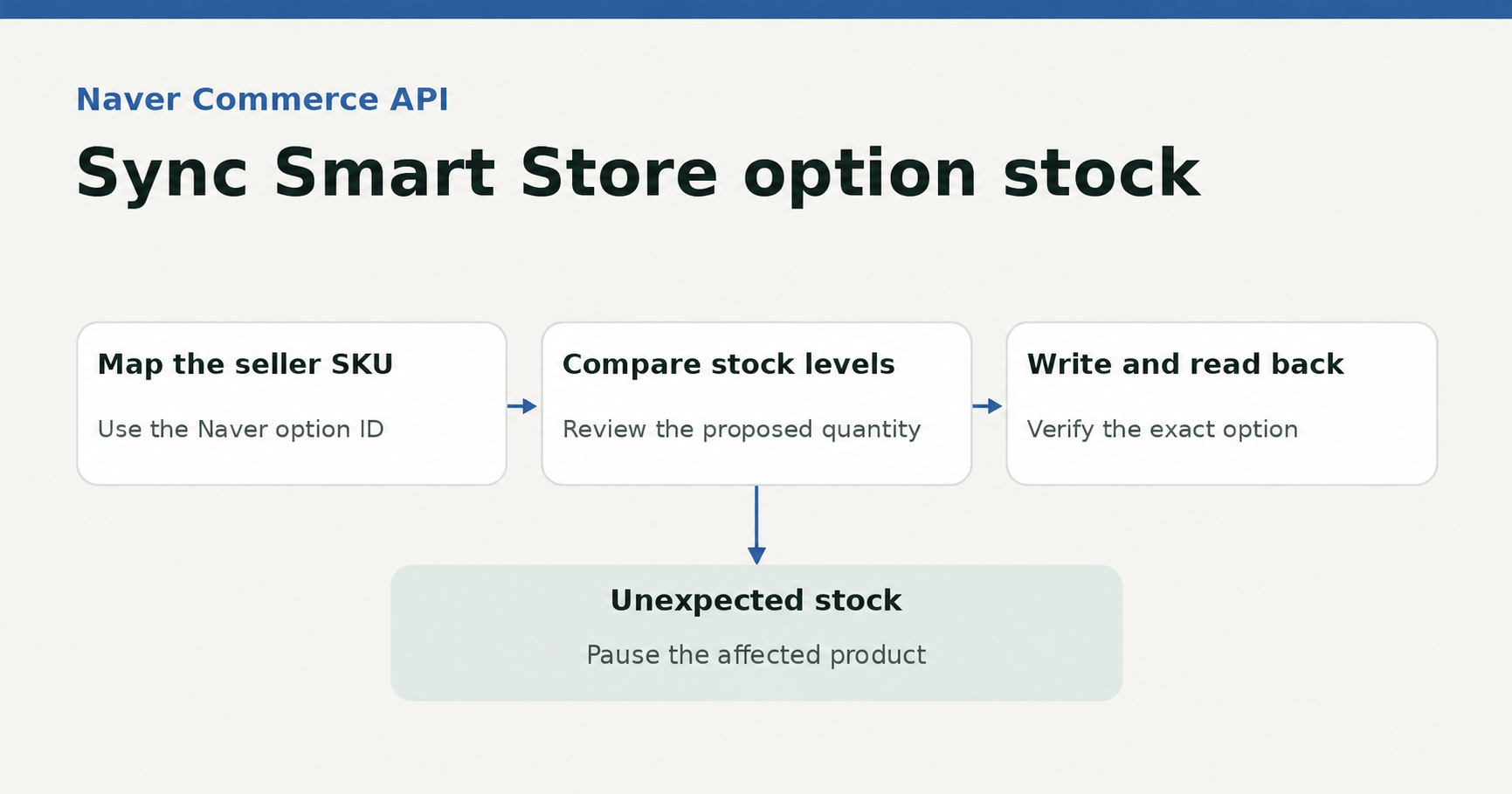
To sync independent warehouse stock to Naver Smart Store, map each seller SKU to the option ID under the Naver original product, preview the quantity change, and read the same option back after writing. Start with one explicitly approved product. This gives you a way to catch a mismatched size or color before the inventory job updates an entire catalog. [1][2]
Establish a reliable option map
Start with the source your business trusts for sellable stock. Decide how it handles reserved units, orders from other channels, and items being inspected after a return. Calculate a proposed sellable quantity using your own stock policy.
Record the warehouse SKU, Naver original product number, option ID, option description, and the timestamp of the warehouse snapshot. Retrieve the original product with Naver’s documented v2 GET route and compare the option descriptions with your warehouse catalog. Treat product and option numbers as identifiers across your own systems. If a spreadsheet or programming language can round large numeric identifiers, hold the record until you can confirm the exact value. [2]
Preview and verify each change
- Run a read-only comparison and list the current option quantity and proposed value. Hold unmatched SKUs, duplicate mappings, stale stock snapshots, and unusual drops for a human decision.
- Use the documented option-stock PUT route under the original product number. Review the current request schema for the listing’s option type before sending a request. The endpoint also covers pricing fields, so verify how they are handled and include a price-change check in the pilot. Keep the full live catalog out of the test. [1]
- Retrieve the original product again. Verify the exact option ID, quantity and the relevant price and availability fields. Record the warehouse snapshot used and the before-and-after values. If the read-back differs from the approved change, pause writes for that product. [2]
Recover from uncertain responses
If the write times out, first re-read the product. It may already reflect the change. Compare with the latest warehouse state and any order reservations before retrying. If two staff members can change stock in Seller Center, assign one owner for the pilot and document the manual override. Restore a prior quantity only after checking whether newer sales or warehouse adjustments changed the available stock.
Pilot acceptance checks
In a dry run, use fictional examples for a sold-out option, an unmapped SKU, and two sizes with similar display labels. Re-create a timeout after a successful write in your test harness. For any live pilot, first confirm that the seller account and listing allow the intended change, then have the catalog owner approve one low-impact option. Verify the updated value and watch for any unintended change to a neighboring option or price.
Official sources and claim checks
Checked on November 15, 2026 (KST).
- The documented PUT route uses originProductNo and can change option inventory, prices, and discount prices. Its response list includes authorization and request errors. Naver Commerce API, Product Option Stock Update
- The documented GET route retrieves the original product by originProductNo for mapping and verification. Naver Commerce API, Read an Original Product v2
Testing and open checks
No authenticated seller, current request payload, fulfillment-managed listing, or live catalog was tested. Confirm the applicable request schema and option permissions with your integration account before enabling writes. No production account was exercised. Procedures and test cases are based on the cited documentation and use synthetic data.