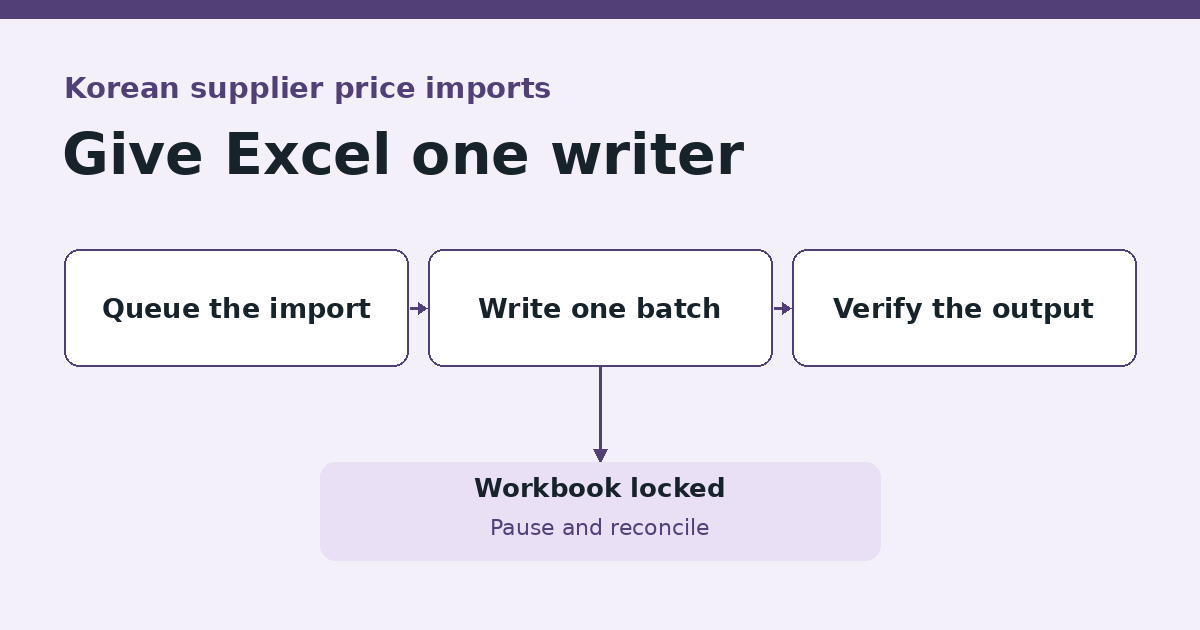
When Power Automate imports Korean supplier price lists into Excel, give the target workbook one writer and queue incoming files until that writer is free. Keep staff edits in a separate review file or queue. Microsoft warns that simultaneous modifications from connectors or manual editing can cause inconsistent data. Verify the workbook after each import before anyone uses it for quotes. [1]
Separate the incoming files from the working price list
Put the operating workbook in a supported document library such as SharePoint or OneDrive for Business. Create an Excel table with a stable key, such as a normalized supplier-and-SKU reference. Keep the KRW unit price, whether the supplier marked it as tax-inclusive, the effective date, and an import-batch reference in separate fields. Route a blank currency, unclear unit, or repeated table key to review. The worksheet should preserve the supplier’s stated tax flag without trying to infer it from the price. [1]
Have every file arrival create a queue record. Only the designated import worker may update the workbook, one batch at a time. If a second flow or a team member can still edit it, moving to sequential steps in one flow will leave another write path open. Send staff corrections through the same queue or apply them during a planned pause.
Verify each batch before approving the price list
- Normalize and preview supplier rows. In a fictional batch, if two rows have the same supplier and SKU but different effective dates, follow the agreed effective-date rule or hold the pair for review.
- Recheck the destination keys before applying the preview. Excel connector key-column names are case-sensitive, and an update with multiple matching rows changes only the first match. Resolve duplicate keys before sending updates. [1]
- Read the affected rows back and compare each key, KRW value, effective date, and batch reference. Microsoft’s documentation says a successful write may take up to 30 seconds to become visible. Use bounded rechecks and keep partial batches out of the team’s published price view. [1]
Recover after locks or timeouts
A workbook may remain locked for update or deletion after connector use, and the connector supports Excel files up to 25 MB. If it returns a lock or a timeout, pause the writer and compare the workbook with the saved batch preview. Apply genuinely missing rows only after the prior result is resolved. Keep the previous approved price list available while reconciling. [1]
Test a copy with fictional prices, overlapping submissions, a duplicate key, and a simulated timeout after a write. Verify that the second batch waits and that an unknown result never becomes an approved price list. Keep quote generation disconnected during the pilot.
Official sources and claim checks
Documentation opened and checked on November 16, 2026 (KST).
- The Standard connector supports files in OneDrive for Business and SharePoint, limits files to 25 MB, warns against simultaneous writers, describes possible locks up to six minutes, and documents delayed visibility and key-column behavior. Microsoft Learn, Excel Online (Business) connector
Testing and limitations
No Microsoft tenant, workbook, license or real supplier file was used. Check your tenant’s entitlements and the connector’s actual timing. The sample import is an internal price preview and makes no tax claim. The workflow and test cases are documentation-based examples with synthetic data.