Use one dropdown to keep status entries consistent
If a small team tracks quotes, orders, or customer follow-ups in Excel, a status dropdown can reduce variations such as “In progress,” “Started,” and “Working on it.” It is a lightweight control for a spreadsheet, not a full work-management system.
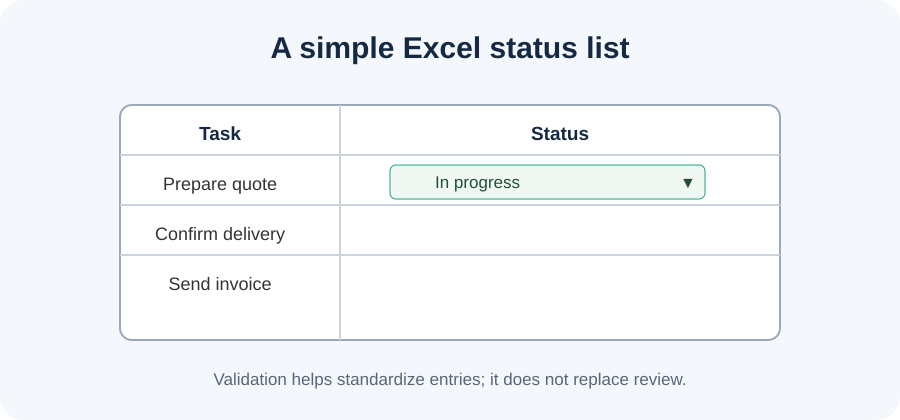
Create the list
- On a setup sheet, enter one status per cell in a single column, with no blank cells. For example: New, In progress, Waiting for customer, Complete.
- Select the status cells in your tracker.
- Open Data > Data Validation.
- Set Allow to List.
- In Source, select the cells containing the statuses. If the options are stable and short, you can enter comma-separated values instead.
- Keep In-cell dropdown enabled and choose an error-alert behavior that matches the workflow.
- Test the dropdown by selecting each option and trying an invalid value in a blank cell in the range where you applied validation.
Microsoft recommends using an Excel table for the source list when you expect to add or remove choices; dropdowns based on a table can update when the table changes. If the sheet is protected or the workbook is shared, the validation settings may be unavailable.
Choose statuses that trigger an action
A status should tell the next person what to do. “Waiting for customer” is more useful when the row also includes a next-contact date. “Complete” should mean the work is finished, not merely sent. Keep the list short enough that staff can choose quickly and define any terms that could be interpreted differently.
For a Korean small-business tracker, you might use English status labels if the team already works in English, or Korean labels if they reduce confusion. The dropdown itself does not translate values or create a history of who changed them.
Know the limits
Data validation helps guide normal data entry, but it is not a security boundary or a guarantee that every cell contains a valid choice. Users may paste or fill data in ways that bypass the expected workflow, and copied rows can carry inconsistent values. Protect the workbook and keep a backup if the sheet is important. For multiple staff, approvals, notifications, audit history, or complex inventory calculations, compare a shared business application instead of extending a fragile spreadsheet indefinitely.
Evidence labels: Microsoft’s Excel documentation supports the Data Validation list steps and notes that a table source can update the list. The suggested statuses and process rules are examples, not tested templates.
Sources and verification
- Microsoft, Create a drop-down list — checked November 15, 2026.
- Microsoft, Apply data validation to cells — checked November 15, 2026.