Use profiles to keep browser work organized
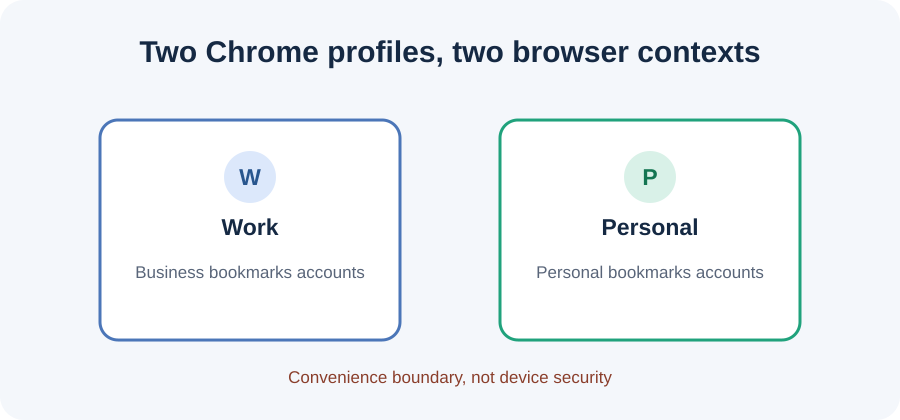
Chrome profiles can keep work and personal bookmarks, history, passwords, and settings in separate browser contexts. If you use the same computer for a Korean business and personal accounts, separate profiles can reduce accidental account switching and keep work bookmarks easier to find.
Add a work profile
- Open Chrome on your computer.
- Select the profile icon near the top-right corner.
- Choose Add Chrome profile or Add.
- Give it a clear name such as Work and choose a distinct color or picture.
- Sign in with the business Google Account only if you want that profile’s supported Chrome data to sync with that account.
- Open the work email, cloud storage, accounting tools, and business bookmarks from that profile.
- Create a separate Personal profile for personal accounts, if useful.
The labels in Chrome can differ by version. Before turning on sync, review which account is signed in and what data the profile will sync. A business profile that syncs to a personal Google Account can defeat the separation you intended.
What profiles help with
Profiles make it easier to see which account you are using and keep browser history and bookmarks grouped. They can reduce mistakes such as saving a business supplier page in a personal bookmark folder or opening a personal inbox in a screen-share session.
Profiles do not make an unlocked computer secure from someone who can use it. Google says a person with access to the device can switch to another Chrome profile and may be able to see browsing information. Use a separate operating-system login and device access controls on a shared computer; follow your company’s security policy for passwords and sensitive files.
Review before removing a profile
Removing a profile can erase its local bookmarks, history, passwords, and other settings from the computer. Check sync and export or back up anything you need before deleting a profile. If your goal is just to sign out of one website, you may not need to remove the entire Chrome profile.
Small-team checklist
- Name profiles clearly and choose different colors.
- Use the correct Google Account for each profile’s sync.
- Avoid storing shared company credentials in a profile that other people can open.
- Lock the operating-system account when stepping away.
- Review the profile before screen-sharing or presenting.
Evidence labels: Google Chrome Help describes which browser information profiles separate, how to add/switch profiles, and the device-access limitation. This is a documentation-based guide; no profile was created or security-tested for this draft.
Sources and verification
- Google, Manage Chrome with multiple profiles — checked November 15, 2026.
- Google, Get your bookmarks, passwords, and more on all your devices — checked November 15, 2026.