Turn paper receipts into a reviewable PDF
Google Drive for Android can scan receipts, letters, and statements and save them as PDFs in Drive. This can make routine business paperwork easier to file and retrieve. A scan is a digital copy; it does not automatically satisfy a government, bank, tax, contract, or reimbursement requirement for an original document.
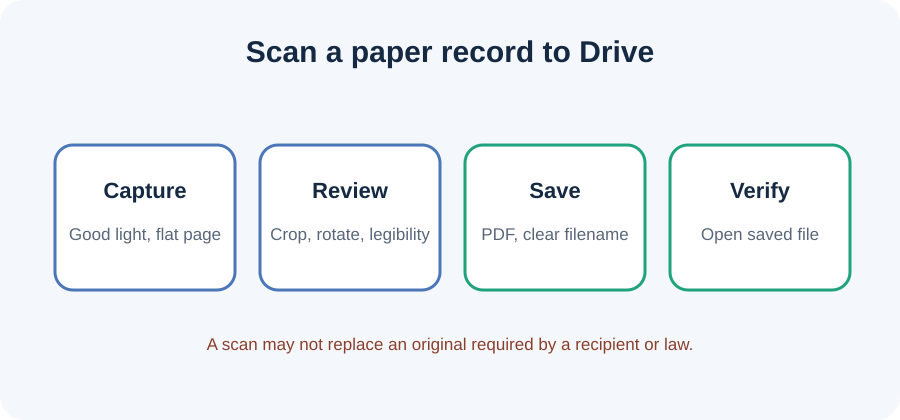
Scan and save a record
- Open the Google Drive app on your Android phone.
- Tap the camera or scan control. Google’s current instructions describe opening Drive and tapping the camera at the bottom right; interface placement may vary by app version.
- Place the paper on a flat surface with good light. Capture the page and review the crop.
- Adjust the crop or rotation, improve contrast if needed, and retake the scan if text, dates, or amounts are unclear.
- Add pages for a multi-page document, then tap Done.
- Give the file a specific name, choose PDF, select the correct Drive folder, and save.
- Reopen the saved PDF and confirm that all pages are legible and in order.
A useful filename might be 2026-11-15_supplier-name_receipt_125000KRW.pdf. Use one consistent pattern that helps your team search by date, vendor, and document type. Do not put sensitive resident or bank identifiers in filenames unless your storage policy permits it.
Make the filing process dependable
Create a folder structure before the pile grows, such as Business Records / 2026 / Receipts / 11-November. If another team member needs access, review the Drive folder’s sharing settings rather than sending broad public links. Keep a clear connection between the scanned receipt and the related transaction or invoice.
Google describes the resulting PDF as searchable, but recognition and search quality can depend on language, print clarity, handwriting, and scan quality. Search the PDF for a visible vendor name or amount after saving; keep the paper receipt if the business, recipient, or applicable rule requires it.
Before discarding or submitting the paper
Ask the receiving organization which format it accepts. For tax, legal, banking, or contract matters, verify the rule with the relevant official body or the recipient. This article does not establish Korean tax recordkeeping requirements or whether a particular office accepts a scanned copy.
Evidence labels: Google’s instructions support scanning, reviewing, naming, choosing PDF or JPG, and saving to Drive. Whether a particular Korean authority or counterparty accepts the scan is unverified and must be confirmed for the specific record. No receipt was scanned for this draft.
Sources and verification
- Google Drive Help, Scan documents with Google Drive on Android — checked November 15, 2026.
- Google Workspace Learning Center, Scan files as PDFs with your mobile device — checked November 15, 2026.