If a Korean shipment reference loses its leading zeros while your automation writes to Google Sheets, keep it as a string from the source onward and set the Sheets API’s valueInputOption to RAW. Read the value back before creating the courier handoff. A display format can add zeros on screen even when the stored value has already changed. [1][2]
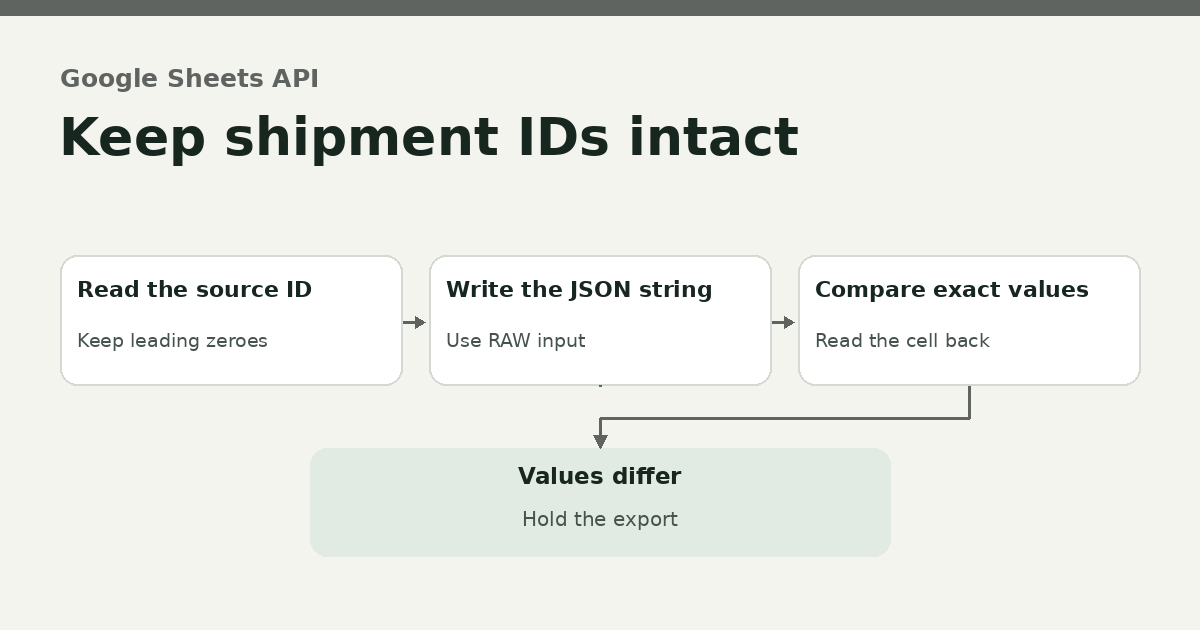
Keep identifiers separate from quantities
Keep the shipment reference field separate from quantities, fees and dates. A fictional source row might carry the reference string "001230045" and a package count of 2. Keep the reference as text during CSV parsing, mapping, and JSON serialization. If the source system already supplied a number, recover the authoritative reference rather than guessing how many zeros it originally had.
Use a fixed staging range that belongs to the importer. For a one-cell API test, send {"values":[["001230045"]]} to the spreadsheets.values.update endpoint with valueInputOption=RAW. The inner quoted value is essential. Google documents that USER_ENTERED can interpret strings as if you typed them into Sheets. A literal starting with an equals sign also gives you a test for unintended formula parsing. [1][2]
Compare the stored value and exported file
- Read back the destination range with
UNFORMATTED_VALUE. Compare each returned ID as a string to its authoritative source value, including the type, length, and every character. [2] - Treat a missing value, converted number, or unexpected character as an export blocker for that row. Keep a local batch ID and exception count so a bilingual warehouse team can correlate errors without sharing underlying customer records.
- Open the actual pilot export in the receiving importer or inspect its raw text before handing it off. An intermediate application may apply its own conversion rules after the Sheets write succeeds.
Recover and test safely
When a write attempt times out, re-read the designated range and compare it before retrying the exact batch to those same rows. Avoid blindly appending after an uncertain response. For quota errors, use a bounded retry with backoff and compare again before release. Keep operator notes and unrelated cells outside the importer-owned range. [3]
Use a test workbook with an all-digit string with leading zeros, a long digit string, a mixed-letter reference, a literal starting with =, and an empty reference. Expect the first four to survive the storage comparison exactly and send the empty field to review. These are synthetic input tests. Use your carrier’s format rules to decide which values belong in an actual export.
Official sources and claim checks
Checked on November 15, 2026 (KST).
- RAW stores values without parsing and USER_ENTERED can convert strings based on the rules used by the Sheets interface. Google Sheets API, ValueInputOption
- The values API supports range-based read and write operations and distinguishes formatted and unformatted render options. Google Sheets API, Read and write cell values
- The API has usage quotas and documents backoff for quota errors. Confirm the current Google billing and quota documentation before rollout. Google Sheets API, Usage limits
Testing and open checks
No live Sheet, courier account, or workbook export was tested. Carrier-specific reference formats and importer rules vary and must be checked with the receiving system. No production account was exercised. Procedures and test cases are based on the cited documentation and use synthetic data.