Set the proofing language for each section
A bilingual document can contain English and Korean while Word’s menus remain in English. For reliable spelling suggestions, select the relevant text and assign its proofing language. This changes how Word checks that text; it does not translate it or guarantee that a sentence is correct.
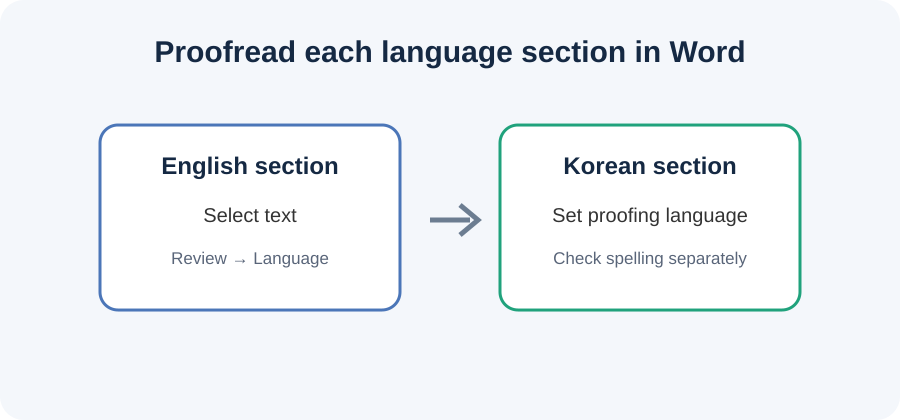
Set English and Korean proofing
- Open the document in Word and select one language section. For a short document, you can select a paragraph; for a longer document, select all English text together.
- Open Review > Language > Set Proofing Language. In Word for the web, use Review > Editor > Set Proofing Language.
- Choose English (United States) for American English text, or the appropriate English variety for your audience.
- Select the Korean section and repeat the steps, choosing Korean.
- Check that the selected text is not set to Do not check spelling or grammar.
- Run Editor or spelling review, then inspect each language section separately.
Word can use one language for its menus and another for authoring and proofing. If a proofing language is unavailable, check File > Options > Language in desktop Word and install or enable the relevant proofing tools if offered. Menu paths vary across desktop, Mac, and web versions.
What Word can and cannot catch
Proofing is useful for typos and some grammar issues. It is not a substitute for a bilingual reviewer, a translator, or a check of Korean names, registration details, amounts, dates, or bank information. Automatic language detection can misidentify short phrases, names, or text that contains a mixture of languages.
For a quote or customer-facing form, make a copy before changing language settings across a whole document. A safe workflow is to assign English to English paragraphs and Korean to Korean paragraphs, then inspect the final exported PDF because line wrapping and fonts can change when the document is rendered.
A short review checklist
- Are English headings and body text marked as the intended English variety?
- Are Korean paragraphs marked as Korean?
- Are product names, company names, addresses, phone numbers, and amounts checked manually?
- Does the final PDF preserve Korean characters and line breaks?
- Has a fluent reviewer checked language that affects a price, obligation, or customer instruction?
Evidence labels: Microsoft documents support setting a proofing language for selected text and configuring authoring languages separately from Office’s display language. The recommendation to manually verify business-critical names and values is editorial guidance. No bilingual file was tested for this draft.
Sources and verification
- Microsoft, Check spelling and grammar in a different language — checked November 15, 2026.
- Microsoft, Change the language Office uses in its menus and proofing tools — checked November 15, 2026.
- Microsoft, Check grammar, spelling, and more in Word for the web — checked November 15, 2026.