Category: Automation

  • WordPress REST API: Keep an Editorial Import Draft-Only

    WordPress REST API: Keep an Editorial Import Draft-Only

    To import text into a Korean business’s WordPress site for editorial review, authenticate as a dedicated Contributor and explicitly request draft when creating the post. Save the returned post ID, retrieve it again to verify its status, and leave approval with an editor. The default Contributor role can manage its own posts and lacks publishing permission. [1][2][3]

    Give the importer the minimum access it needs

    Create an account for the text integration and verify the actual role capabilities on the staging site. Generate a separate Application Password for that account and store it server-side. WordPress ties the credential to the account and allows you to revoke the credential individually. Use the supported HTTPS authentication method. Keep secrets, draft excerpts and Authorization headers out of shared run logs. [1][2]

    Scope the first rollout to standard text posts. Keep media uploads, featured images and final publication under the editorial workflow. For a bilingual Korean shop or publication, include a stable source record and language label in the internal handoff so the editor can open the intended draft. Preview Hangul, English punctuation and paragraph boundaries before progressing.

    Create once and verify the intended draft

    1. Send the post title and content with status=draft to the Posts endpoint. Store the returned post ID against the source reference. Retrieve that post as an authorized user and check its ID, text and status before marking the handoff ready. [3]
    2. If the create response is lost, place the source in an unknown state. Have an editor locate and verify the matching draft before authorizing another create. A similar title can belong to a different language edition or version.
    3. When a previously handed-off source changes, show the editor which version changed. Confirm ownership and current draft status before any authorized revision, and keep the integration from writing changes after the editor moves the post forward.

    Test permissions and recovery on staging

    With fictional articles, verify that draft creation and read-back succeed. In the isolated staging environment, verify that the integration identity cannot publish or schedule a post and cannot edit another author’s draft. A custom role or plugin can change behavior, so correct the capability issue on staging before enabling imports. Simulate a timeout after creation and confirm that the same source does not create a duplicate. Revoke the integration credential and verify that further requests fail. [1][2][3]
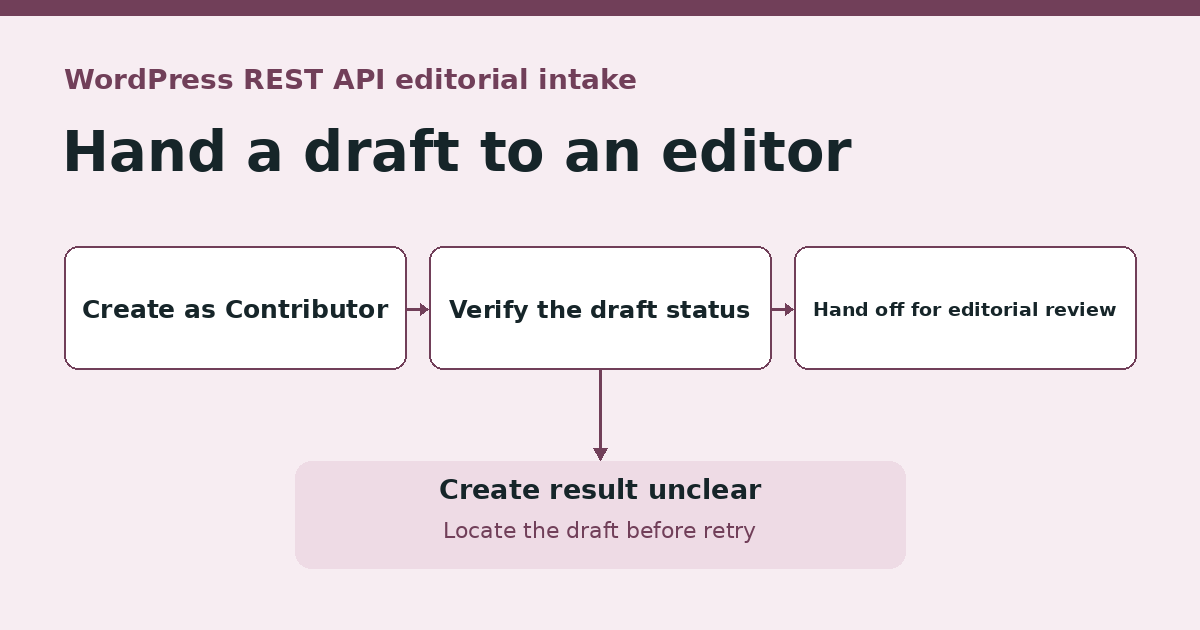
    WordPress workflow creating as a Contributor, checking the draft status and handing off to an editor, with uncertain creates checked before retry.
    Original editorial review diagram. This illustration contains no WordPress interface.

    Official sources and claim checks

    Official documentation opened and checked on November 17, 2026 (KST).

    1. Application Passwords are individually revocable API credentials tied to a user. The handbook documents Basic Authentication over HTTPS. WordPress Application Passwords Handbook
    2. The default Contributor manages their own posts and lacks the capability to publish them. Plugins or custom role changes must be checked on the actual site. WordPress Roles and Capabilities
    3. Posts can be created and retrieved by REST API, and the documented status field distinguishes draft, pending, future, private and publish. WordPress REST API Posts reference

    Testing and open checks

    No WordPress site was written to, and no credential, plugin configuration, or REST permission was tested. The instructions assume default WordPress post capabilities and should be verified on staging. Examples and test steps are documentation-based and use synthetic inputs.
  • AirKorea Warning Alerts: Track Issue and Clearance for Shift Leads

    AirKorea Warning Alerts: Track Issue and Clearance for Shift Leads

    If your team in Korea wants to catch official particulate-warning changes during a shift, monitor AirKorea’s warning-status feed for the operating area’s region and zone. Flag an issue or clearance for the shift lead to review. Keep the last confirmed status visible when the feed is unavailable, along with when it was checked. [1]

    Match official events to operating areas

    Maintain a small table of your operating locations and the names AirKorea uses for their warning regions and zones. Ask staff to verify the mapping against the official service before rollout. The public catalog distinguishes districtName from moveName and uses PM25 as its query code for PM2.5. It also documents the request year, page parameters and public-data service key. [1]

    Use the official warning records for issue and clearance. A station reading or nearby district can support a separate review, while your automation should follow the specific warning area in the official record. Store the source serial number, pollutant, warning level, area and issue time as received. Check the provider’s data-use terms before displaying feed content outside your organization. [1]

    Distinguish a change from an unavailable feed

    1. Read the relevant result pages and validate the provider response. Record a new issue for matching areas when an event is first seen. If the same event reappears, update its record and suppress another identical internal alert.
    2. Record clearance only when the matching source event carries clearance information you can interpret. Display that result as the status of the individual warning. If two pollutants or overlapping warnings are present, preserve them separately. [1]
    3. If the feed times out, returns an incomplete set, or an area name changes unexpectedly, show an unavailable or stale state with the last confirmed check. Have staff consult the official notice before taking action. Do not infer clearance from a missing row.

    Test the status transitions before relying on alerts

    Replay fictional issue, repeated issue, explicit clearance, another active pollutant, and failed-page examples. Verify that a failed poll preserves the previous state and can be reprocessed without producing an extra alert. Keep customer notifications and automatic work decisions disconnected. The first live phase can show only an internal preview alongside the official notices staff already consult.

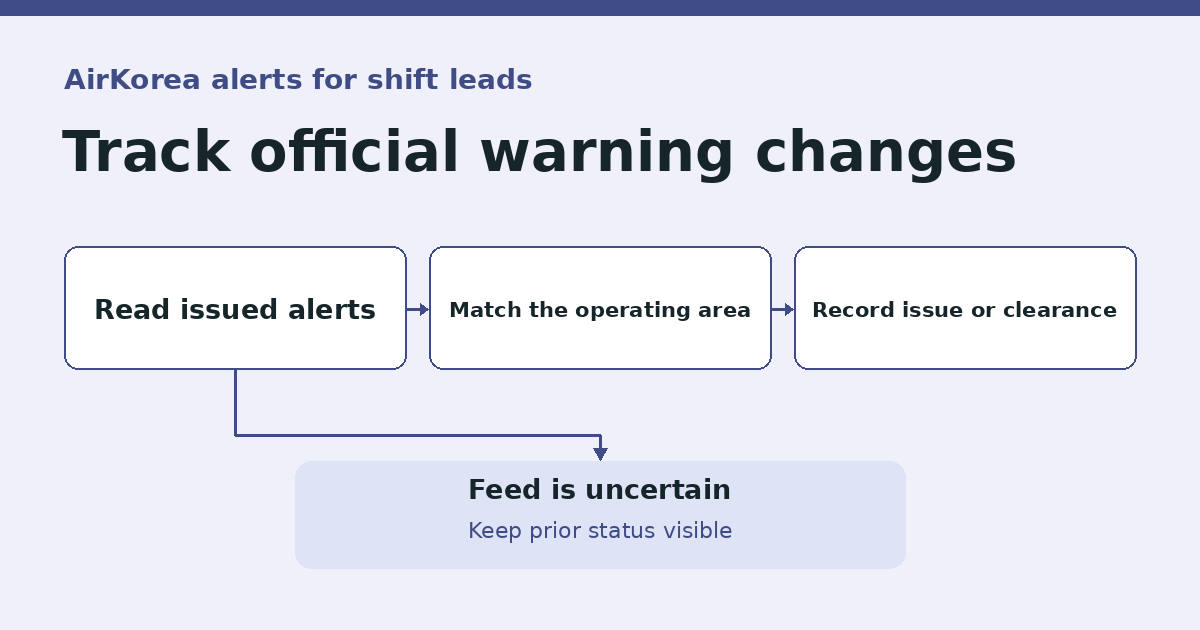
    AirKorea alert workflow reading issued alerts, matching the operating area, recording issue or clearance and keeping prior status visible when the feed is uncertain.
    Original diagram of an internal warning monitor. This illustration contains no AirKorea interface or measured values.

    Official sources and claim checks

    Official documentation opened and checked on November 17, 2026 (KST).

    1. The catalog describes the warning and clearance lookup, lists PM10 and PM25 selectors, and defines serial number, region, zone, issue type, issue timestamps and clearance timestamps. It lists free access, key requirements and dataset rights. Korea Environment Corporation AirKorea particulate warning status API, Korea Public Data Portal

    Testing and open checks

    No authenticated call, live warning or real operational notification was exercised. Verify the region mapping, missing clearance field representation, time conventions and account usage before rollout. The draft gives no health thresholds or safety determinations. Examples and test steps are documentation-based and use synthetic inputs.
  • Kakao Map API: Screen Quotes by Mobile Service Radius in Korea

    Kakao Map API: Screen Quotes by Mobile Service Radius in Korea

    If your mobile service team in Korea uses a radius to decide which quote requests it can handle, geocode the confirmed base address with the Kakao Local API and calculate straight-line distance from your service hub. Use the result to route the inquiry. Ambiguous matches, boundary cases and appointments requiring a travel estimate should go to staff before anyone confirms a price. [1]

    Define your operating rule before building the automation

    Record the approved service hub, a radius in kilometers, and a review band around the boundary. A business might choose a fictional three-kilometer radius and a review band of 250 meters on either side to test the workflow. Set the real values from your own service economics and travel experience.

    Send only the building-level address text needed for the lookup. Keep names and apartment-unit details out of the geocoding query and diagnostics. Inspect the returned candidates and hold the job if your rules cannot identify a matching base address. Kakao documents address conversion and the coordinate response fields. [1]

    Convert the candidate into a review decision

    1. Parse the longitude from x and latitude from y. Keep a consistent coordinate order for the hub and the request. Reject out-of-range values, then measure distance with a geographic distance function. [1]
    2. Route clear in-radius results to quote preparation. Send results close to the boundary to staff for review. Make out-of-radius results a separate queue decision so an operator can consider an alternate hub or a special job.
    3. Use straight-line distance for screening. For appointment length, practical access or a travel surcharge, check a route and operational constraints such as bridges, parking or building access separately. Kakao documents route products apart from address conversion and publishes usage and quota information by service. [2]

    Keep uncertain jobs visible

    If geocoding is unavailable, keep the quote request open and label its location as unchecked. Do not assign it a distance from a default coordinate. A replay should update the same inquiry with a match or a manual decision once service returns.

    Test with synthetic coordinate pairs that fall clearly inside, on the boundary, and outside. Add a swapped-coordinate case, two look-alike candidate addresses, and a simulated quota error. Use a preview-only queue until staff confirm the decisions and no customer receives an automatic price or appointment.

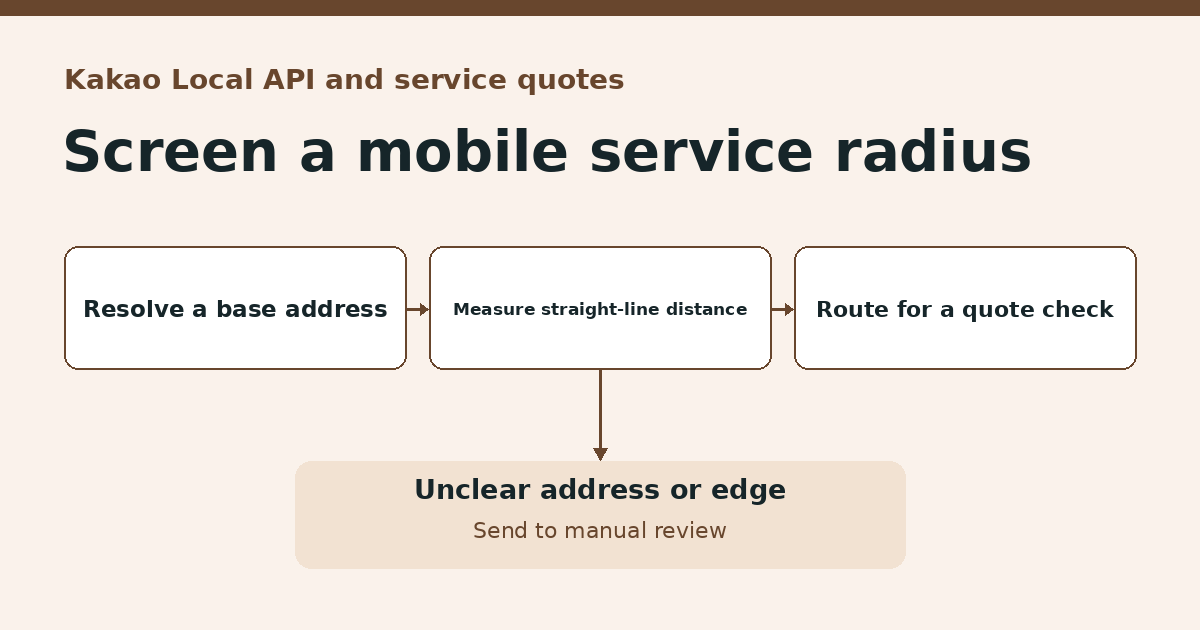
    Service radius diagram showing base-address resolution, straight-line distance and quote review, with unclear addresses and boundary cases sent to staff.
    Original service-area screening diagram. This illustration contains no Kakao Map interface and displays no real addresses.

    Official sources and claim checks

    Official documentation opened and checked on November 17, 2026 (KST).

    1. The address search endpoint returns matching documents and coordinates with x as longitude and y as latitude. Kakao Local REST API guide
    2. The quota documentation describes app-specific usage and separates address-to-coordinate conversion from route products. Kakao Developers quota guide

    Testing and open checks

    No Kakao app, geocoded address, travel route, or account quota was tested. Before using real inquiries, check your Kakao account’s quota, terms and approved handling for submitted location data. Examples and test steps are documentation-based and use synthetic inputs.
  • KONEPS Bid Notice Alerts: Build a Review Queue for Korean Service Tenders

    KONEPS Bid Notice Alerts: Build a Review Queue for Korean Service Tenders

    To monitor Korean public service tenders, poll the Public Procurement Service’s KONEPS bid notice API for service notices and send relevant changes to an internal review queue. Use the service category and keep a checkpoint for completed search windows. The Data Portal’s November 10, 2026 notice reduced the documented query period from one month to seven days, so split a longer catch-up into shorter windows. [1]

    Choose a narrow watchlist

    Start with one type of service your business can assess, such as equipment maintenance. The portal lists separate operations for services, goods and construction. Start with the service notice list, getBidPblancListInfoServc02, and use the documented service change history when reviewing tracked notices. The portal lists the API as free and requires a Public Data Portal key for the documented search. Keep that key on the server and out of request logs. [1]

    For each result you retain, save the provider notice number, the revision if present, the Korean title, and the procuring organization. Add a short English gloss for coworkers if needed, keeping the Korean text visible. Store your internal reason for including the notice. A keyword hit gives staff a lead to inspect. Staff should check the current official notice and its attachments for eligibility, changes, deadlines and submission instructions.

    Read complete windows and tell staff about changes

    1. Read all pages for a short request window. Save the last successfully completed window only after all its pages have been recorded. Keep adjacent windows slightly overlapping and deduplicate by provider notice and revision. Use a comparison of meaningful fields to detect a change when the revision field is absent.
    2. Queue a new review only for a new relevant notice or a material change, such as an amended deadline. Update the existing review record with the current and previous values. Never clear an old reminder until the new deadline has been checked.
    3. If a request times out or a page fails, retain the prior checkpoint and show the gap to staff. Backfill it in slices within the documented limit and confirm the count for each completed window before closing that gap. [1]

    Test the review-only rollout

    Use fictional notices for an unchanged repeat, a revised closing time, and a failure on page two. Verify that the repeated record adds no new review, the revision is visible, and the failed page prevents checkpoint advancement. Test a catch-up that spans more than a week by splitting it into multiple requests. Keep external alerts and all bidding actions disabled during the test.

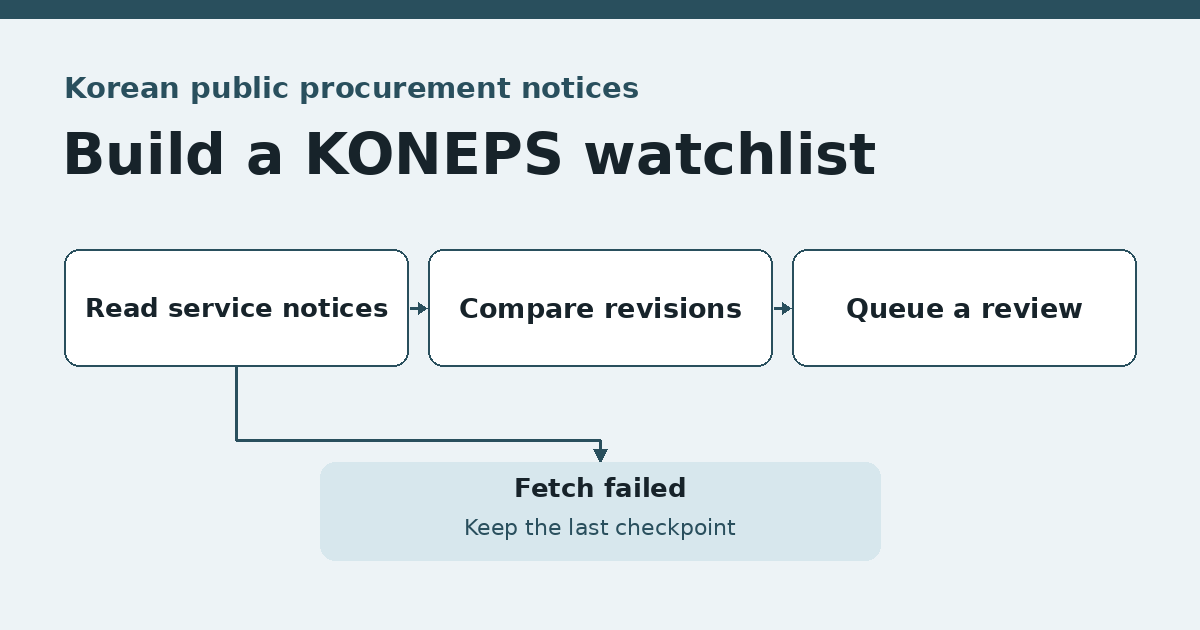
    KONEPS workflow reading service notices, comparing revisions and queuing review, with failed fetches retaining the last checkpoint.
    Original diagram of a service-tender watchlist. This illustration contains no Korean government interface.

    Official sources and claim checks

    Documentation opened and checked on November 16, 2026 (KST).

    1. The listing identifies separate service, goods and construction operations, service change history, date and page request fields, and the November 10, 2026 change reducing the query period to seven days. The portal lists access as free. Public Procurement Service Bid Notice Information Service, Korea Public Data Portal

    Testing and limitations

    No authenticated portal request, live pagination, eligibility assessment, or bid submission was performed. Confirm the current request limit, revision fields and time-zone interpretation with the approved API account before relying on alerts. The workflow and test cases are documentation-based examples with synthetic data.

  • Power Automate Excel Imports: Give a Korean Supplier Price Workbook One Writer

    Power Automate Excel Imports: Give a Korean Supplier Price Workbook One Writer

    When Power Automate imports Korean supplier price lists into Excel, give the target workbook one writer and queue incoming files until that writer is free. Keep staff edits in a separate review file or queue. Microsoft warns that simultaneous modifications from connectors or manual editing can cause inconsistent data. Verify the workbook after each import before anyone uses it for quotes. [1]

    Separate the incoming files from the working price list

    Put the operating workbook in a supported document library such as SharePoint or OneDrive for Business. Create an Excel table with a stable key, such as a normalized supplier-and-SKU reference. Keep the KRW unit price, whether the supplier marked it as tax-inclusive, the effective date, and an import-batch reference in separate fields. Route a blank currency, unclear unit, or repeated table key to review. The worksheet should preserve the supplier’s stated tax flag without trying to infer it from the price. [1]

    Have every file arrival create a queue record. Only the designated import worker may update the workbook, one batch at a time. If a second flow or a team member can still edit it, moving to sequential steps in one flow will leave another write path open. Send staff corrections through the same queue or apply them during a planned pause.

    Verify each batch before approving the price list

    1. Normalize and preview supplier rows. In a fictional batch, if two rows have the same supplier and SKU but different effective dates, follow the agreed effective-date rule or hold the pair for review.
    2. Recheck the destination keys before applying the preview. Excel connector key-column names are case-sensitive, and an update with multiple matching rows changes only the first match. Resolve duplicate keys before sending updates. [1]
    3. Read the affected rows back and compare each key, KRW value, effective date, and batch reference. Microsoft’s documentation says a successful write may take up to 30 seconds to become visible. Use bounded rechecks and keep partial batches out of the team’s published price view. [1]

    Recover after locks or timeouts

    A workbook may remain locked for update or deletion after connector use, and the connector supports Excel files up to 25 MB. If it returns a lock or a timeout, pause the writer and compare the workbook with the saved batch preview. Apply genuinely missing rows only after the prior result is resolved. Keep the previous approved price list available while reconciling. [1]

    Test a copy with fictional prices, overlapping submissions, a duplicate key, and a simulated timeout after a write. Verify that the second batch waits and that an unknown result never becomes an approved price list. Keep quote generation disconnected during the pilot.

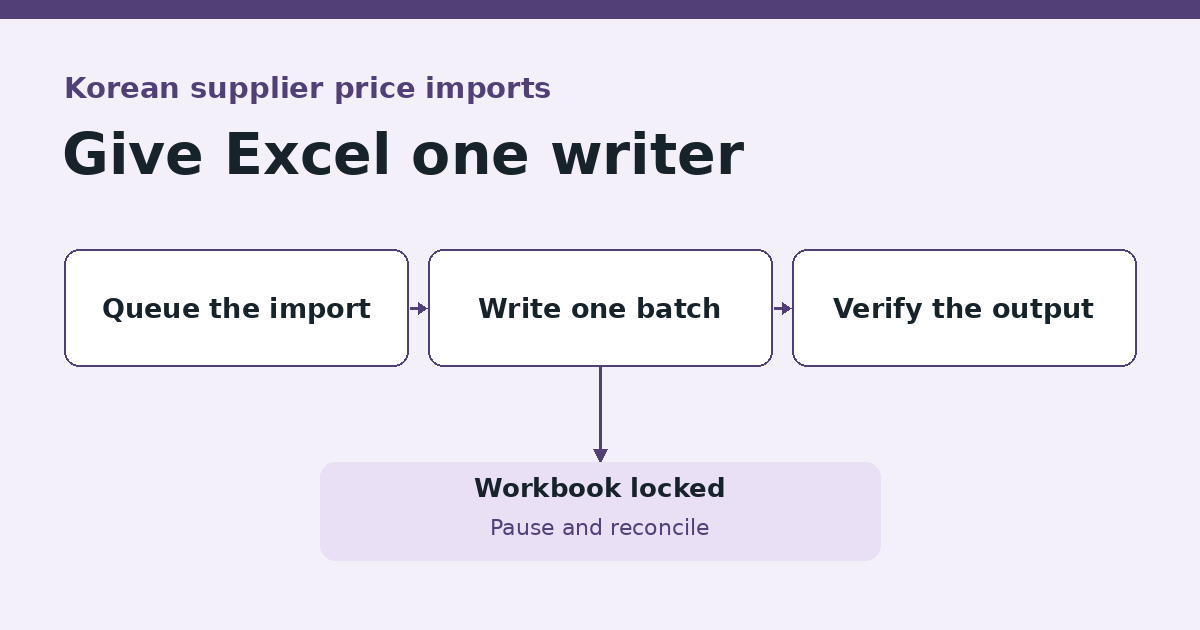
    Power Automate workflow queuing an import, writing one batch, verifying the output and pausing for reconciliation if the workbook is locked.
    Original diagram of a single-writer Excel import. This illustration contains no Microsoft product interface.

    Official sources and claim checks

    Documentation opened and checked on November 16, 2026 (KST).

    1. The Standard connector supports files in OneDrive for Business and SharePoint, limits files to 25 MB, warns against simultaneous writers, describes possible locks up to six minutes, and documents delayed visibility and key-column behavior. Microsoft Learn, Excel Online (Business) connector

    Testing and limitations

    No Microsoft tenant, workbook, license or real supplier file was used. Check your tenant’s entitlements and the connector’s actual timing. The sample import is an internal price preview and makes no tax claim. The workflow and test cases are documentation-based examples with synthetic data.

  • Korea Public Holiday Dispatch Calendar: Combine KASI Dates With Carrier Pickup

    Korea Public Holiday Dispatch Calendar: Combine KASI Dates With Carrier Pickup

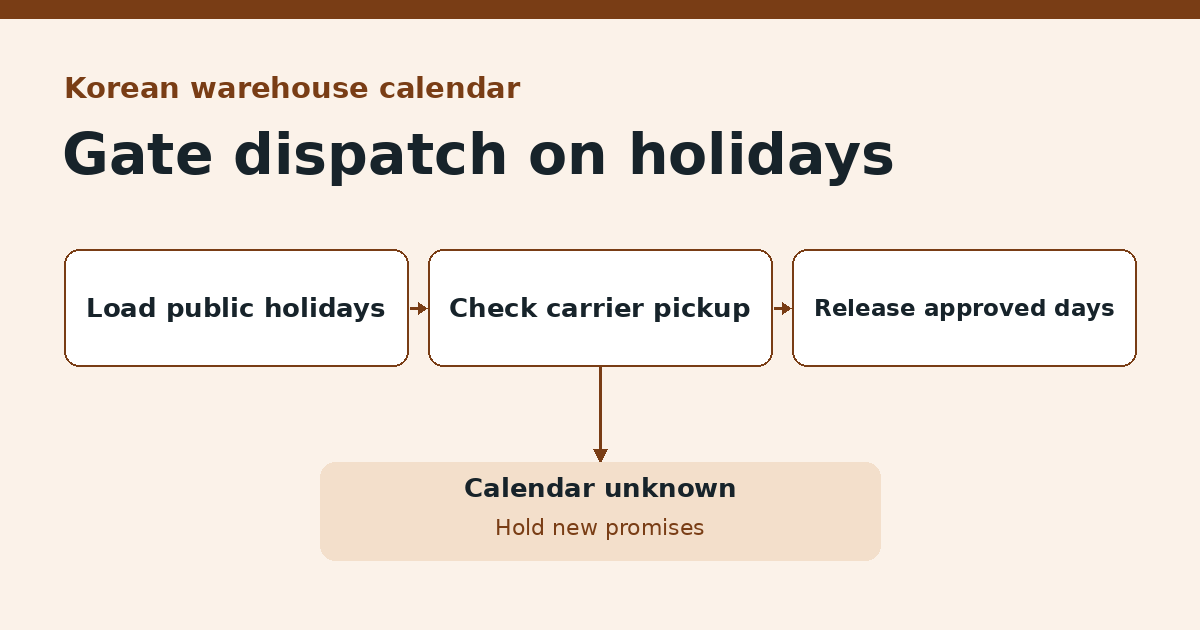
    For a shop dispatching parcels in Korea, use the Korea Astronomy and Space Science Institute’s public holiday data as a calendar input and combine it with confirmed warehouse hours and courier pickup schedules. Offer a dispatch date only when those inputs support a pickup for the selected location and service. A public holiday flag by itself describes the public calendar, while the courier schedule governs your contracted pickup. [1]

    Build a dispatch calendar by location and service

    Pull the public holiday lookup for the month or months your checkout can promise. Read the source date locdate, the indicator isHoliday, and the name dateName. Store the calendar day using Korea local dates, along with the original source result and retrieval time. Verify that you processed the complete response before committing the month. The portal describes the service as a free XML API. [1]

    Maintain warehouse and carrier rules outside the holiday feed. Include the branch, carrier service, confirmed pickup days, staff cutoff time, and a record of special closures or approved exceptions. An explicitly approved holiday pickup should have an owner and a written source. Store the cutoff in the branch’s local time and first evaluate the local date of the proposed handoff.

    Decide when the workflow may promise a date

    1. Select the dispatch origin and carrier service for the given order class.
    2. Check the day against the public calendar, warehouse schedule, pickup calendar and cutoff. If all necessary inputs are present, choose the first approved dispatch date. For a displayed arrival estimate, use a separate rule based on the carrier’s expected transit service.
    3. If a required input is missing or outdated, pause new promises for the affected route and send staff the date, location and missing source. Keep existing promises visible for review and ask staff to decide whether they need customer follow-up.

    Recover from a missing month or a late closure

    Keep the last validated month while investigating a fetch failure. Distinguish a valid zero-holiday response from a missing or failed response before replacing the calendar. If staff confirm a late closure, regenerate previews and list affected existing promises. Keep sending and dispatch actions disabled until staff verify the updated list.

    For a dry run, use synthetic schedules for a holiday with no pickup, a holiday with an approved pickup, a cutoff just after closing, and a failed fetch at month end. Check that the workflow rolls into the next validated month and holds when it lacks that month’s data.

    Holiday dispatch workflow loading public holidays, checking carrier pickup and releasing approved dates, with unknown calendars holding promises.
    Original diagram of a Korean warehouse dispatch calendar. This illustration contains no government or carrier interface.

    Official sources and claim checks

    Documentation opened and checked on November 16, 2026 (KST).

    1. The public holiday function documents year and month queries and fields for the date, holiday name and public-institution holiday flag. The portal lists the API as free and the data format as XML. KASI Special Day Information, Korea Public Data Portal

    Testing and limitations

    No service key or carrier account was exercised. Test your account’s successful and no-result response formats, holiday update lag, carrier pickup schedule and any local closure override. The workflow and test cases are documentation-based examples with synthetic data.

  • Cafe24 Split Shipments: Reconcile Each Parcel Before Closing an Order

    Cafe24 Split Shipments: Reconcile Each Parcel Before Closing an Order

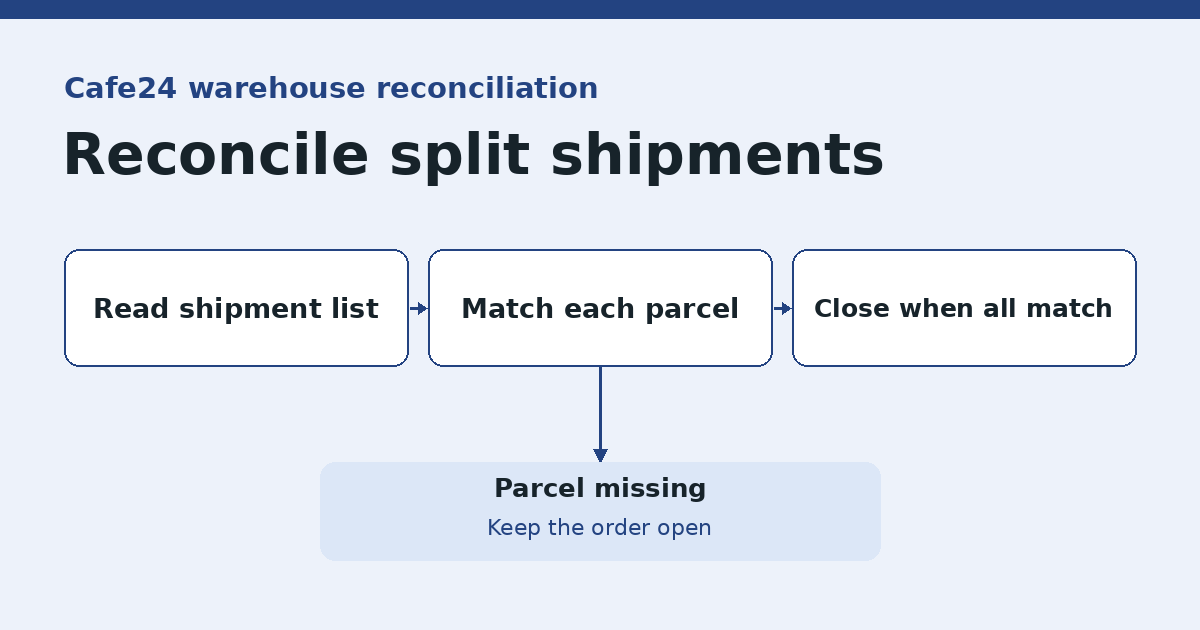
    For a Cafe24 order packed into two or more parcels, match each shipping code to the warehouse record and reconcile the full set of order items before closing the internal dispatch task. Cafe24’s order shipments endpoint can return multiple shipping numbers for one partially delivered order. Closing at the first tracking number can hide a parcel that still needs to leave. [1]

    Build the order-to-parcel checklist

    1. Read both source lists. Fetch Cafe24’s shipment list and order items with an app authorized for order reads. Keep separate references for the store, order, shipment code and item code. Check your store’s mapping rules for bundles, partial quantities and back orders before assuming one item code always maps to one parcel. [1][2][3]
    2. Match the warehouse handoff. For each expected parcel, record the team’s intended item quantities and a warehouse handoff reference. Compare the Cafe24 shipment record and use the corresponding carrier and tracking values to reconcile the handoff. Keep addresses and recipient details out of the shared reconciliation log.
    3. Close the dispatch task only after reconciliation. If a parcel has a label but no recorded handoff, leave that parcel open. If the expected quantities or item allocations disagree, hold the order for review. Keep a separate status for carrier-confirmed delivery if the business needs that signal.

    Handle split and amended orders

    In a fictional order, parcel A covers two units of a cleaning cloth and parcel B covers a nozzle. If A is matched and B is missing, mark A reconciled and the order incomplete. If the nozzle is canceled, fetch current order items and ask staff to confirm the resulting expected quantities. Preserve the previous reconciliation result so an auditor can see why the task reopened.

    If a reprint or a change creates two tracking references for the same box, reconcile them with the warehouse before closing. On a timeout, freeze the affected order’s previous state and retry the read. Cafe24 flags caching on the endpoint, so make sure you have a sufficiently fresh snapshot before acting on a recently changed record. [1]

    Pilot in read-only mode

    Replay two synthetic orders, one complete and one with a missing parcel. Add a case with a late second parcel and a case with a changed item quantity. Verify that re-reading unchanged input creates no duplicate tasks and a missing parcel never triggers a store update or customer message. Pilot on a narrow sample with warehouse staff comparing your internal report against their handoff records.

    Cafe24 reconciliation workflow reading a shipment list, matching each parcel and closing after a full match, with missing parcels keeping the order open.
    Original diagram of split-parcel reconciliation. This illustration contains no Cafe24 interface.

    Official sources and claim checks

    Documentation opened and checked on November 16, 2026 (KST).

    1. The current order shipments GET route uses an order read scope and can return several shipping numbers for a partial delivery. Cafe24 Admin API, retrieve order shipment information
    2. The order items GET route exposes the list of order items for comparison. Cafe24 Admin API, retrieve order items
    3. The Admin API uses OAuth 2.0 and the documented HTTPS base URL. Cafe24 API, Getting Started

    Testing and limitations

    No live store, warehouse export, carrier scan or API response was tested. Confirm cache freshness and your store’s item-to-parcel mapping in a read-only pilot. The workflow and test cases are documentation-based examples with synthetic data.

  • Kakao AlimTalk Fallback: Check SMS Status Before Resending

    Kakao AlimTalk Fallback: Check SMS Status Before Resending

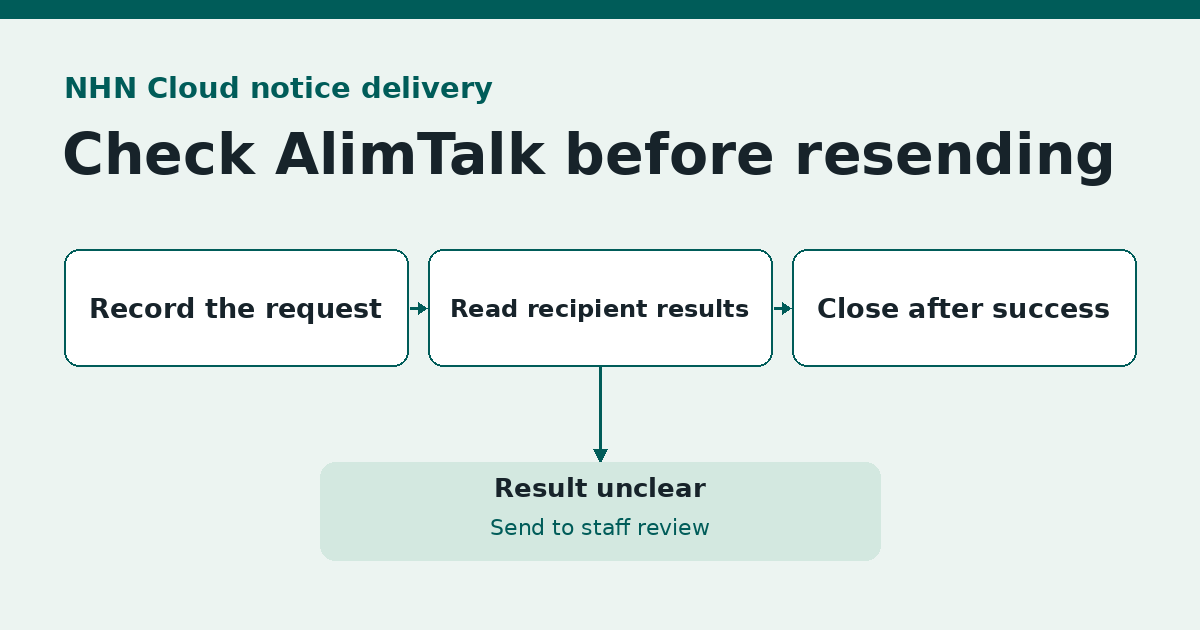
    If NHN Cloud reports that a Kakao AlimTalk order notice failed, check the result for that recipient and the SMS or LMS fallback state before resending. When the fallback is queued or in progress, leave the notice in review and let the provider’s result settle. That keeps an operator from sending a second text while the first one is still being processed. [1][2]

    Keep the original request and recipient result together

    Use this workflow only for transactional notices that your shop already sends through an approved setup. When the sending service returns its identifiers, store the internal notice reference, provider request ID, and recipient sequence together. Use that pair for lookup and audit. Keep the recipient’s number and message body out of the general support queue. [1]

    Read the per-recipient result with the lookup in the v2.3 guide or refresh updates with its message-results endpoint. An API call that succeeds gives you a response to inspect. Determine the actual outcome from the recipient’s result and fallback fields. The console also distinguishes request status from send results. [1][2]

    Map results to staff actions

    • Original notice reported successful. Close the notice as provider-reported success. Confirm suppression of any pending manual resend.
    • Fallback eligible or in progress. Keep a review deadline and check again. NHN Cloud lists RSC02 as targeted for fallback and RSC03 as in progress. [1]
    • Fallback successful. Close the notice as provider-reported fallback success. Preserve the distinction from an original AlimTalk success and from a customer reading the notice. [1]
    • Fallback failed, absent, or unknown. Route an unsuccessful original notice to an operator. Verify the currently configured sender number and SMS service before approving another send. NHN Cloud documents separate charges for SMS or LMS fallback. [1][2]

    Recover without sending duplicates

    If the initial send timed out before your application recorded an ID, first search the provider console within the request window and compare your dispatch ledger. A timeout leaves delivery uncertain. Keep retries disabled for that case until an operator can reconcile it. Use a stable internal notice key for the same order event so that a staff action and an automated process cannot independently send the same replacement.

    Replay fictional cases for original success, fallback in progress, fallback success, fallback failure and lost response. Check that none of those dry runs sends a message. For a later approved test, use a designated staff number and verify the provider state in both API and console before expanding to customer notices.

    NHN Cloud notice workflow linking the recorded request to recipient results, closing successful cases and routing unclear results to staff.
    Original diagram of a transactional notice review. This illustration represents workflow steps and contains no NHN Cloud or KakaoTalk interface.

    Official sources and claim checks

    Documentation opened and checked on November 16, 2026 (KST).

    1. The result schema exposes requestId, recipientSeq, AlimTalk result fields and alternative delivery fields. The fallback table distinguishes eligible, in progress, successful, failed, and not targeted. NHN Cloud AlimTalk API v2.3
    2. Alternative delivery depends on the configured SMS service and sender number. Fallback SMS or LMS is charged separately, and request and send results appear separately in the console. NHN Cloud AlimTalk console guide

    Testing and limitations

    No KakaoTalk, NHN Cloud or SMS account was used. Actual account charges, template approval, provider timing, and handset delivery were not tested. The workflow and test cases are documentation-based examples with synthetic data.

  • Naver Smart Store Inventory Sync: Update Stock by Option ID

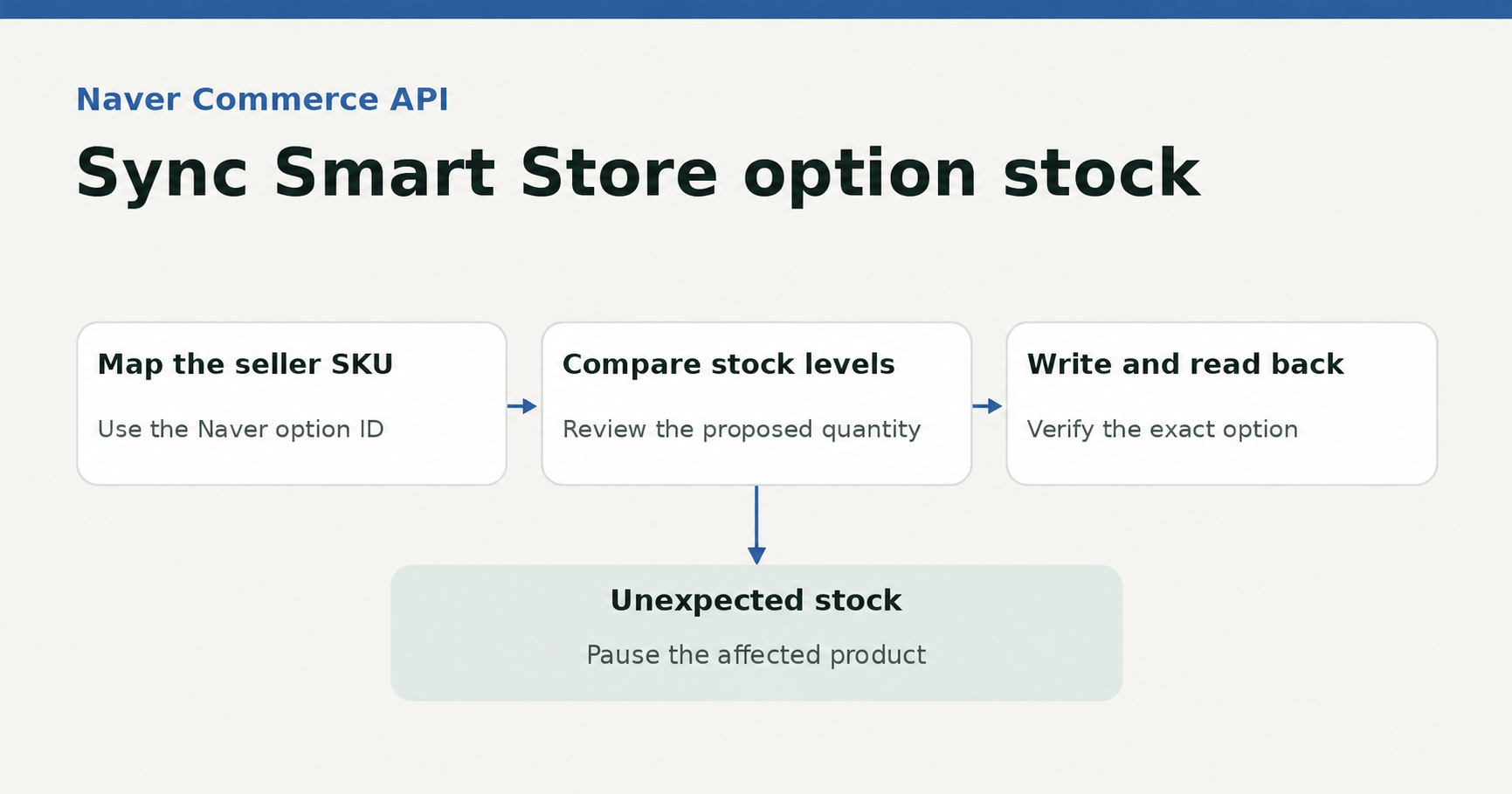
    To sync independent warehouse stock to Naver Smart Store, map each seller SKU to the option ID under the Naver original product, preview the quantity change, and read the same option back after writing. Start with one explicitly approved product. This gives you a way to catch a mismatched size or color before the inventory job updates an entire catalog. [1][2]

    Diagram mapping a seller SKU to a Naver option ID, comparing current and proposed stock, reading back the updated option, and pausing a product if stock is unexpected.
    Original workflow diagram for verifying a Smart Store option quantity update. This is an illustration, not a Naver screen. Original AI-assisted explanatory diagram.

    Establish a reliable option map

    Start with the source your business trusts for sellable stock. Decide how it handles reserved units, orders from other channels, and items being inspected after a return. Calculate a proposed sellable quantity using your own stock policy.

    Record the warehouse SKU, Naver original product number, option ID, option description, and the timestamp of the warehouse snapshot. Retrieve the original product with Naver’s documented v2 GET route and compare the option descriptions with your warehouse catalog. Treat product and option numbers as identifiers across your own systems. If a spreadsheet or programming language can round large numeric identifiers, hold the record until you can confirm the exact value. [2]

    Preview and verify each change

    1. Run a read-only comparison and list the current option quantity and proposed value. Hold unmatched SKUs, duplicate mappings, stale stock snapshots, and unusual drops for a human decision.
    2. Use the documented option-stock PUT route under the original product number. Review the current request schema for the listing’s option type before sending a request. The endpoint also covers pricing fields, so verify how they are handled and include a price-change check in the pilot. Keep the full live catalog out of the test. [1]
    3. Retrieve the original product again. Verify the exact option ID, quantity and the relevant price and availability fields. Record the warehouse snapshot used and the before-and-after values. If the read-back differs from the approved change, pause writes for that product. [2]

    Recover from uncertain responses

    If the write times out, first re-read the product. It may already reflect the change. Compare with the latest warehouse state and any order reservations before retrying. If two staff members can change stock in Seller Center, assign one owner for the pilot and document the manual override. Restore a prior quantity only after checking whether newer sales or warehouse adjustments changed the available stock.

    Pilot acceptance checks

    In a dry run, use fictional examples for a sold-out option, an unmapped SKU, and two sizes with similar display labels. Re-create a timeout after a successful write in your test harness. For any live pilot, first confirm that the seller account and listing allow the intended change, then have the catalog owner approve one low-impact option. Verify the updated value and watch for any unintended change to a neighboring option or price.

    Official sources and claim checks

    Checked on November 15, 2026 (KST).

    1. The documented PUT route uses originProductNo and can change option inventory, prices, and discount prices. Its response list includes authorization and request errors. Naver Commerce API, Product Option Stock Update
    2. The documented GET route retrieves the original product by originProductNo for mapping and verification. Naver Commerce API, Read an Original Product v2

    Testing and open checks

    No authenticated seller, current request payload, fulfillment-managed listing, or live catalog was tested. Confirm the applicable request schema and option permissions with your integration account before enabling writes. No production account was exercised. Procedures and test cases are based on the cited documentation and use synthetic data.

  • Toss Payments Virtual Accounts: When to Release an Order

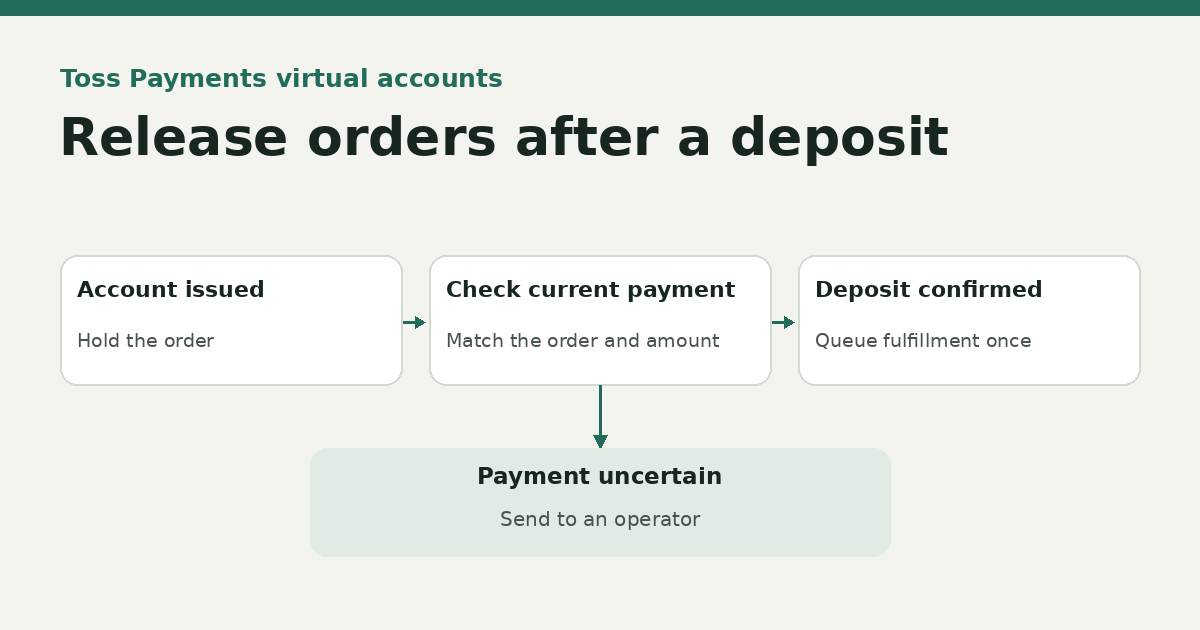
    If your Korean online store accepts Toss Payments virtual accounts, release an order to fulfillment only after the provider reports a completed deposit for the order and your system verifies the amount. Account issuance leaves the payment at WAITING_FOR_DEPOSIT. Your checkout can show that the account is ready while your warehouse queue keeps the order on hold. [1]

    Diagram showing the order held when a virtual account is issued, a payment check against the order and amount, fulfillment queued after approval, and uncertain payments sent to an operator.
    Original workflow diagram showing the deposit check before fulfillment. This is an illustration, not a Toss Payments screen. Original AI-assisted explanatory diagram.

    Build the deposit check into fulfillment

    1. Record the order at issuance. Keep the internal order ID, expected KRW amount, Toss paymentKey, and current fulfillment state. For the documented DEPOSIT_CALLBACK integration, store the callback verification secret from the issuance response in restricted server-side storage. Keep it out of support tickets, tracking sheets, and debug logs. [1]
    2. Treat the callback as a prompt to verify. Validate the callback secret using the value captured for that order, then retrieve the current payment with the saved paymentKey. Check that the payment belongs to the intended order, the amount matches your order record, and the status is DONE. Put unknown orders, verification failures, and lookup errors in a review queue with a short reason code. [1][3]
    3. Queue packing once. Within the same database transaction, record the order as eligible for fulfillment and insert a fulfillment task with a unique key for that order and action. If a callback is delivered again, the worker should see the existing task. Have the packing or shipping integration use a stable request reference and check whether the shipment already exists after an uncertain response. [2]
    4. Acknowledge delivery after recording the work. Toss documents a successful acknowledgment as HTTP 200 and retries unsuccessful deliveries. Design the receiver to acknowledge valid events after it has recorded the work durably so a slow packing system does not block webhook processing. [2]

    Decide what to do when a payment changes

    Toss documents that subscribing to both DEPOSIT_CALLBACK and PAYMENT_STATUS_CHANGED can produce two events for the same payment. Do not use CANCEL_STATUS_CHANGED as the domestic virtual-account cancellation hook: it covers asynchronous foreign payment methods in China and Southeast Asia. [2]

    The following are proposed safety controls, not guarantees supplied by Toss. For a validated event linked to a known order, retrieve the current payment. Require DONE, the correct order and expected amount, no cancellation inconsistent with the approved order, and current fulfillment eligibility. Do not rely on totalAmount alone: it retains the initial amount after cancellation. Check the status and cancellation history too. [3]

    A non-DONE state, full or partial cancellation, lookup failure, amount mismatch, or changed order should hold new and existing unstarted fulfillment tasks for review. An unverified notification must not itself change an arbitrary order. The worker should repeat payment and order checks immediately before shipment release, and serialize local state changes and task claims per order or use conditional updates against the current order version. If a partial cancellation is legitimate, an operator must approve the remaining order before a new release decision.

    A local database transaction cannot make the provider’s payment and an external carrier’s shipment atomic. A cancellation may race with the final check or arrive after dispatch. Use a stable shipment reference, inspect uncertain responses before retrying, and route an already-created label or shipped parcel to manual reconciliation with the warehouse and carrier. Do not automatically promise that shipment can be stopped.

    Test the handoff before connecting a warehouse

    Connect an isolated receiver to the test store and simulate a deposit through the Developer Center test transaction view. Send packing output only to a test queue. Verify that issuance creates zero packing tasks, a valid deposit creates one, and repeating the event keeps the count at one. Simulate a lookup timeout, mismatched amount, return to pending, full cancellation and partial cancellation after a task has been queued. Replay both subscribed event types for the same payment and race a cancellation against the worker’s task claim. Verify that invalidated unstarted tasks do not release shipments and that a shipment already submitted becomes a manual reconciliation case. Keep customer messaging and live shipment creation disabled throughout the exercise. [1]

    Official sources and claim checks

    Checked on November 15, 2026 (KST).

    1. Account issuance returns WAITING_FOR_DEPOSIT, deposit changes it to DONE, the DEPOSIT_CALLBACK secret is compared with the issuance response, and deposits can be simulated in the Developer Center test transaction view. Toss Payments virtual-account payment window guide
    2. Virtual-account events can include issuance, deposit, and cancellation. Two subscribed event types can describe the same payment, delivery is retried, and a rare reversal from DONE is documented. Toss Payments webhook integration
    3. The payment retrieval endpoint takes a paymentKey and returns a Payment object. The Payment definition explains totalAmount and cancellation data. Toss Payments API guide and Core API Payment definition

    Testing and open checks

    The merchant’s live contract, bank coverage, and fulfillment integration were not tested. Merchant account fees are outside this guide. The workflow and dry-run checks are documented examples. No production account was exercised. Procedures and test cases are based on the cited documentation and use synthetic data.