Category: Automation

  • Google Drive Shared Drive Automation: Update a Receipt Index

    If a bilingual shop team in Korea files receipt PDFs in a Google Workspace shared drive, use that drive’s own change feed to update a small receipt index. Save a cursor for that drive, update rows by Drive file ID, and move the cursor only after the index changes are recorded. The index can show which files are ready for bookkeeping without opening or copying every PDF on each run. [1][2][3]
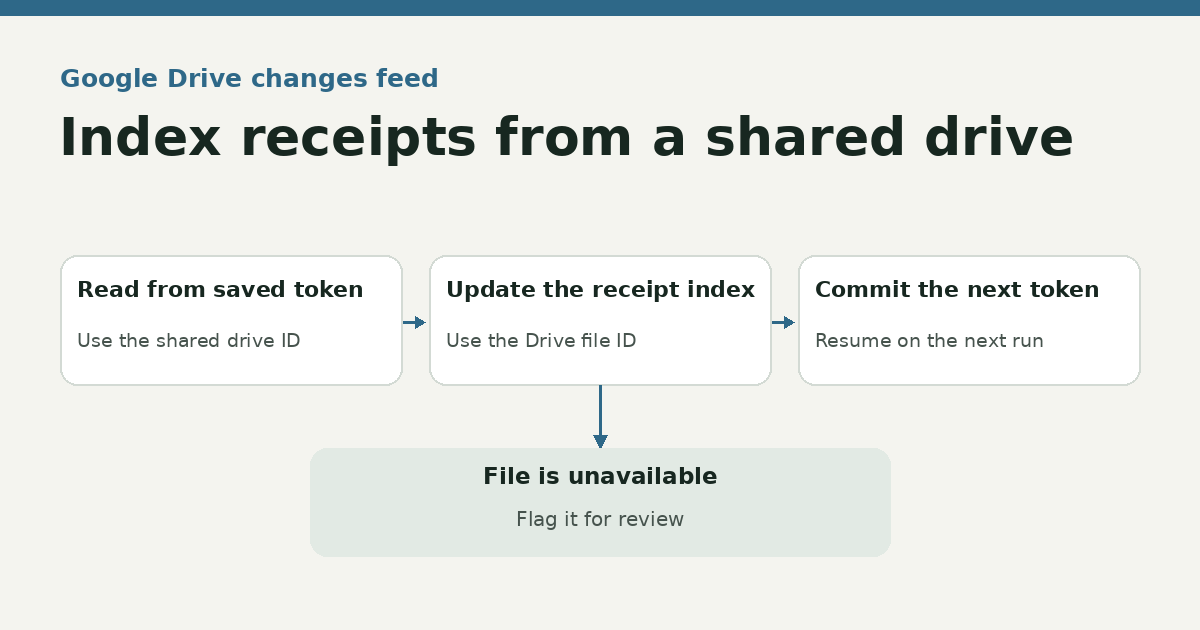
    Diagram showing a change token scoped to a shared drive, updates keyed by file ID, a committed next token, and unavailable files flagged for review.
    Original workflow diagram for replaying shared-drive changes into a receipt index. This is an illustration, not a Google Drive screen. Original AI-assisted explanatory diagram.

    Build the baseline before polling

    Choose one shared drive and the receipt folders inside it. Decide what the index needs, such as an internal file reference, first-seen timestamp, handling status and the responsible team. Avoid copying PDF contents or sensitive file names into broad notifications. Use an explicit list of receipt folder IDs. If your scope includes whole subtrees, reconcile folder moves against a fresh listing before treating membership as current.

    Obtain a drive-specific start page token before listing the existing receipt files for the initial index. Finish the listing and then replay changes from the saved start token so changes during the listing can be picked up. Use the Drive file ID as the row key so the same file can appear in both the snapshot and the replay without creating a second row. [1][2][3]

    Process and commit each page

    1. Call changes.list with the saved token, the target driveId, supportsAllDrives=true, and includeItemsFromAllDrives=true. A user’s general feed is insufficient for a complete view of member changes in a specific shared drive. [1][2]
    2. Update the index with current state from the feed. If the file is now out of scope or unavailable, mark it for review. Keep the old row available for reconciliation. The feed alone cannot tell you whether an unavailable file was physically deleted, moved, or became inaccessible. [1]
    3. After the page is recorded, save its nextPageToken to continue. At the end, save newStartPageToken for the next poll. If the index and cursor are in different systems, make repeated row updates safe and resume from the last cursor you can prove was committed. [3]

    Test interruptions before indexing real documents

    Use a separate shared drive with blank sample PDFs. Test an addition, a move out of the receipt folder, a loss of access and an interruption after a page is applied but before its token is saved. Verify that replay settles on one row per file ID and that unclear removals appear as exceptions. If the cursor is lost, pause output and rebuild a fresh baseline with the same process. Leave filing, notification, and deletion actions disabled until someone reviews the reconciliation results.

    Official sources and claim checks

    Checked on November 15, 2026 (KST).

    1. Each shared drive has its own change log. A removed item may mean loss of access or a move, so the feed alone cannot establish permanent deletion. Google Drive API, Track changes for users and shared drives
    2. The guide documents requesting a drive-specific start token and listing changes with driveId, supportsAllDrives and includeItemsFromAllDrives. Google Drive API, Implement shared drive support
    3. nextPageToken continues a paginated feed and newStartPageToken starts the next polling cycle. Google Drive API, Retrieve changes

    Testing and open checks

    Workspace edition availability, administrator settings, file access, and a live Drive API integration were not tested. This article does not establish accounting retention periods or tax deductibility. No production account was exercised. Procedures and test cases are based on the cited documentation and use synthetic data.
  • Korean Delivery Address Automation: Build an Exception Queue

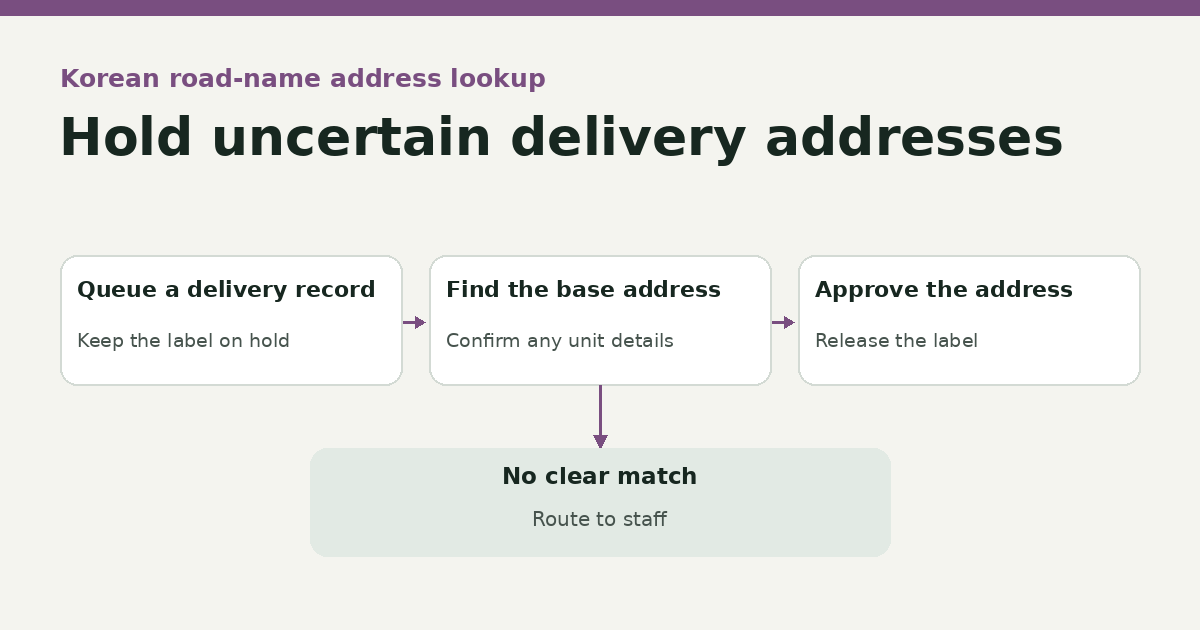
    If your Korean store prints shipping labels in batches, put incomplete or ambiguous addresses into a review queue before sending them to the carrier. Use Korea’s official road-name address lookup to check the base address, then confirm apartment or suite details separately. Release the label only after your workflow records an approved version of the address. [1]

    Diagram showing a delivery record placed on hold, a base address and unit check, approval before label release, and unclear matches sent to staff.
    Original workflow diagram for holding unclear delivery addresses. This is an illustration, not a Korean government website or carrier screen. Original AI-assisted explanatory diagram.

    Separate checks you can automate from staff decisions

    On order intake, check that the delivery record has a base address. If the buyer indicates an apartment, office suite, or multi-unit building, check whether the required unit information is present. Your form can also flag a blank postal-code field when your carrier importer requires it. Treat these checks as screening rules. They cannot establish that a parcel can be delivered.

    Create a review task with the order reference, current address version, and a short reason such as BASE_MATCH_UNCLEAR or UNIT_MISSING. Keep the address in the restricted order view. A shared team notification only needs the order reference and the action to take.

    Use the official Korean lookup during review

    1. Search for the road name and building number first. The official screen also shows building-name and lot-number search examples, which can help staff locate a candidate when formats differ. [1]
    2. Compare the candidate against the order and any supplied postal code. If older address information is involved, the lookup offers an option to include changed addresses. Confirm that the candidate corresponds to the intended building before replacing anything. [1]
    3. Check detailed address fields for the intended building and unit. The official lookup separates the road-name address from detailed input. If the unit is unclear, ask the customer through the order’s existing support channel and keep the label on hold until staff confirm the details. [1]
    4. Save approval against the current address version. If the address changes afterward, invalidate that approval and have the workflow hold any unstarted label task.

    Handle exceptions before batch printing

    No match, multiple plausible buildings, or an unexplained postal-code conflict should keep the order in review. A failed lookup should leave the task available for staff to retry. If the carrier rejects an approved address, compare the carrier’s required fields with the approved record. If a label already exists, check its status before creating another one.

    Dry-run the flow with fictional order references and fabricated matching results. Verify that a single confirmed match creates a preview, an ambiguous match creates a manual task, and an edited address invalidates approval. Keep the carrier upload disabled until the preview and exception list agree.

    Official sources and claim checks

    Checked on November 15, 2026 (KST).

    1. The Korean lookup interface accepts a road-name address, building name, or lot-number example. It offers an option to include changed address information and a separate detailed-address input. Road Name Address Information System, official lookup and detail entry
    2. The official service describes address-search API integration. This article uses official operator lookup and does not depend on an authenticated search API. Korean Address-Based Industry Support Service

    Testing and open checks

    No live address or courier label was submitted. Building matches, acceptance by a carrier, delivery status, and the approval-key API schema were not tested. The workflow does not make a claim about legal compliance or route coverage. No production account was exercised. Procedures and test cases are based on the cited documentation and use synthetic data.
  • Keep Korean Shipment IDs Intact in Google Sheets Automation

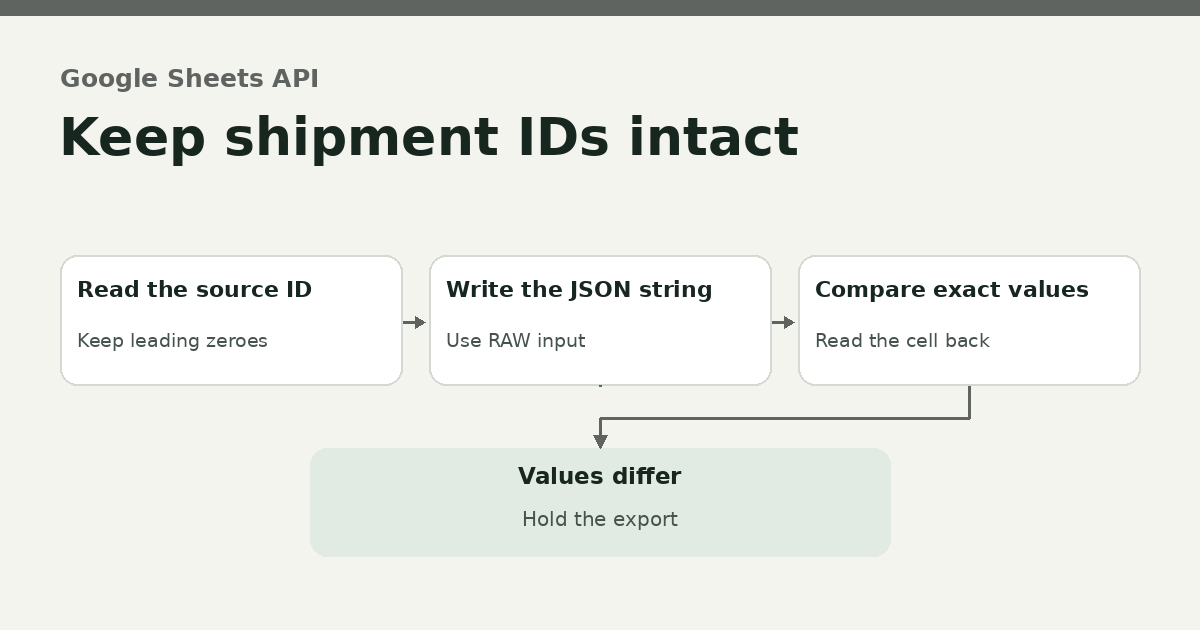
    If a Korean shipment reference loses its leading zeros while your automation writes to Google Sheets, keep it as a string from the source onward and set the Sheets API’s valueInputOption to RAW. Read the value back before creating the courier handoff. A display format can add zeros on screen even when the stored value has already changed. [1][2]

    Diagram showing an original shipment ID kept as text, written to Sheets with RAW input, read back for an exact comparison, and held from export if values differ.
    Original workflow diagram for checking shipment references before export. This is an illustration, not a Google Sheets screen. Original AI-assisted explanatory diagram.

    Keep identifiers separate from quantities

    Keep the shipment reference field separate from quantities, fees and dates. A fictional source row might carry the reference string "001230045" and a package count of 2. Keep the reference as text during CSV parsing, mapping, and JSON serialization. If the source system already supplied a number, recover the authoritative reference rather than guessing how many zeros it originally had.

    Use a fixed staging range that belongs to the importer. For a one-cell API test, send {"values":[["001230045"]]} to the spreadsheets.values.update endpoint with valueInputOption=RAW. The inner quoted value is essential. Google documents that USER_ENTERED can interpret strings as if you typed them into Sheets. A literal starting with an equals sign also gives you a test for unintended formula parsing. [1][2]

    Compare the stored value and exported file

    1. Read back the destination range with UNFORMATTED_VALUE. Compare each returned ID as a string to its authoritative source value, including the type, length, and every character. [2]
    2. Treat a missing value, converted number, or unexpected character as an export blocker for that row. Keep a local batch ID and exception count so a bilingual warehouse team can correlate errors without sharing underlying customer records.
    3. Open the actual pilot export in the receiving importer or inspect its raw text before handing it off. An intermediate application may apply its own conversion rules after the Sheets write succeeds.

    Recover and test safely

    When a write attempt times out, re-read the designated range and compare it before retrying the exact batch to those same rows. Avoid blindly appending after an uncertain response. For quota errors, use a bounded retry with backoff and compare again before release. Keep operator notes and unrelated cells outside the importer-owned range. [3]

    Use a test workbook with an all-digit string with leading zeros, a long digit string, a mixed-letter reference, a literal starting with =, and an empty reference. Expect the first four to survive the storage comparison exactly and send the empty field to review. These are synthetic input tests. Use your carrier’s format rules to decide which values belong in an actual export.

    Official sources and claim checks

    Checked on November 15, 2026 (KST).

    1. RAW stores values without parsing and USER_ENTERED can convert strings based on the rules used by the Sheets interface. Google Sheets API, ValueInputOption
    2. The values API supports range-based read and write operations and distinguishes formatted and unformatted render options. Google Sheets API, Read and write cell values
    3. The API has usage quotas and documents backoff for quota errors. Confirm the current Google billing and quota documentation before rollout. Google Sheets API, Usage limits

    Testing and open checks

    No live Sheet, courier account, or workbook export was tested. Carrier-specific reference formats and importer rules vary and must be checked with the receiving system. No production account was exercised. Procedures and test cases are based on the cited documentation and use synthetic data.
  • Make Subscenarios: Define Inputs and Outputs for a Shared Step

    Make Subscenarios: Define Inputs and Outputs for a Shared Step

    When should you move a step into a Make subscenario? Do it when multiple workflows need the same bounded operation and can agree on the inputs and result. Start with a reversible task such as classifying a service request by branch code.

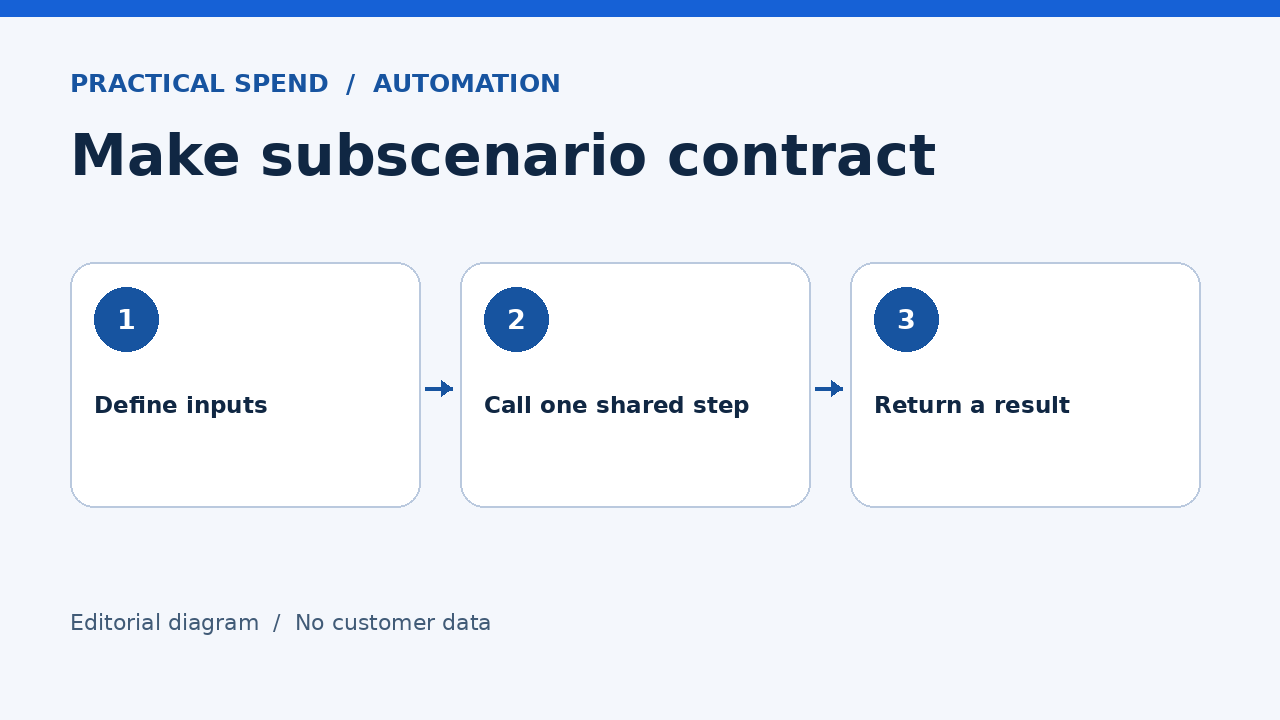
    The diagram shows defining inputs, calling a shared step, and returning the result.
    AI-assisted original editorial diagram. This is not a product screenshot; it contains no customer data.

    Define the contract

    Write down the fields, allowed values, and result. For a fictional multi-location repair business, the caller supplies a branch code and service type. The subscenario returns a routing outcome and, when a match exists, the internal destination reference. The caller keeps the customer’s contact data. Agree on how to represent an unknown branch and where exceptions go.

    Connect the shared step

    Make documents scenario input and output definitions, calling a subscenario, and returning values to the caller. Configure the child scenario with the agreed fields and wire each caller to it. Give the shared step one job. The callers can decide whether to log the result, alert staff, or wait for review. A classification rule should not issue refunds or send customer messages as a hidden side effect.

    Maintain it without surprising callers

    For a compatible change, keep required inputs and output meanings stable. If you need a breaking change, stand up a new contract and move one caller at a time. Record which caller uses which version. If a lookup fails, return a deliberate review outcome when appropriate. Route infrastructure errors through the caller’s error handling rather than reporting a false successful classification.

    Test both callers with synthetic cases

    Check a valid branch, an unknown branch, a missing required value, and an unavailable lookup. Inspect the returned values from each caller. Before rollout, confirm the Make account’s feature availability, usage, and access permissions. Use a test route for any downstream actions and leave customer-facing sends disconnected.

    Official sources and evidence

    Checked November 10, 2026 (KST).

    Verification notes

    Evidence confirmed: The claims mapped above reflect the cited official documentation or legal text.
    Editorial recommendation: Workflows, checklists, and examples are proposed operating practices.
    Hands-on testing: None. Examples are synthetic.
    Unverified: No Make scenario, caller contract, plan availability, or live integration was tested.

  • Zapier Task Forecast for a Classic Zap: Count the Paths That Run

    Zapier Task Forecast for a Classic Zap: Count the Paths That Run

    How many tasks will a Classic Zap use each month? Count the successful actions on each route, multiply by how many items take that route, and allow for extra actions from replays and error handling. Use Zapier’s current metering rules for the workflow type you run.

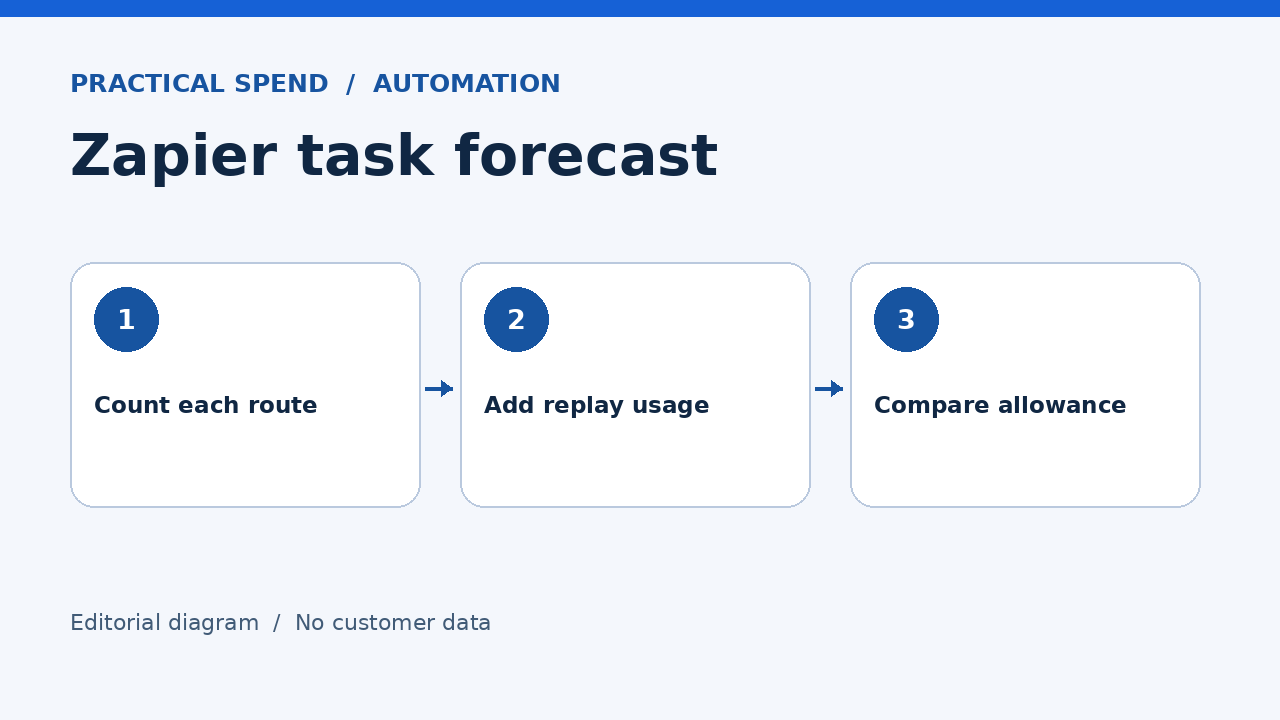
    The diagram shows counting each route, adding replay usage, and comparing the plan allowance.
    AI-assisted original editorial diagram. This is not a product screenshot; it contains no customer data.

    Count successful actions by route

    Draw the path from trigger to destination. Zapier documents that triggers, Filter steps, and Paths steps do not count as tasks for Classic Zaps, while successful actions generally do. Check its exceptions for built-in tools and its rules for sub-Zaps. List the action counts for each outcome before combining the totals.

    For a hypothetical appointment inquiry workflow, assume 120 eligible inquiries each use one successful database write and one internal notification. Suppose 30 other inquiries each use one successful review-list write. With those assumptions the monthly base is 270 tasks. The example is a planning calculation using fictional volume. If a full replay successfully reruns one of the writes, include that repeated action in your forecast. Do not double-count an inquiry across routes unless its workflow actually takes both.

    Compare the estimate with the account allowance

    Add expected peak-month traffic and exceptional routes. Compare the result with the plan allowance and current account billing settings. Zapier documents that workflows can be held when limits are reached and that pay-per-task billing may be available. Verify the amount, currency, billing terms, and enabled settings on the account before purchasing. This calculation covers Classic Zaps, whose published rules should be checked separately from Next Gen Zaps and other usage models.

    Check real usage safely

    Compare the estimate with the account’s usage view after a representative period. Investigate whether extra actions came from routing, recovery, or duplicated runs. Zapier notes that testing an action in the editor can perform the action in the connected app even if the test does not count toward tasks. Use synthetic records and isolated test destinations.

    Official sources and evidence

    Checked November 10, 2026 (KST).

    Verification notes

    Evidence confirmed: The claims mapped above reflect the cited official documentation or legal text.
    Editorial recommendation: Workflows, checklists, and examples are proposed operating practices.
    Hands-on testing: None. Examples are synthetic.
    Unverified: No Zap, plan, or Korean billing account was tested. Sample volumes and calculated tasks are illustrative.

  • Refund Automation: Build an Approval and Reconciliation Workflow

    Refund Automation: Build an Approval and Reconciliation Workflow

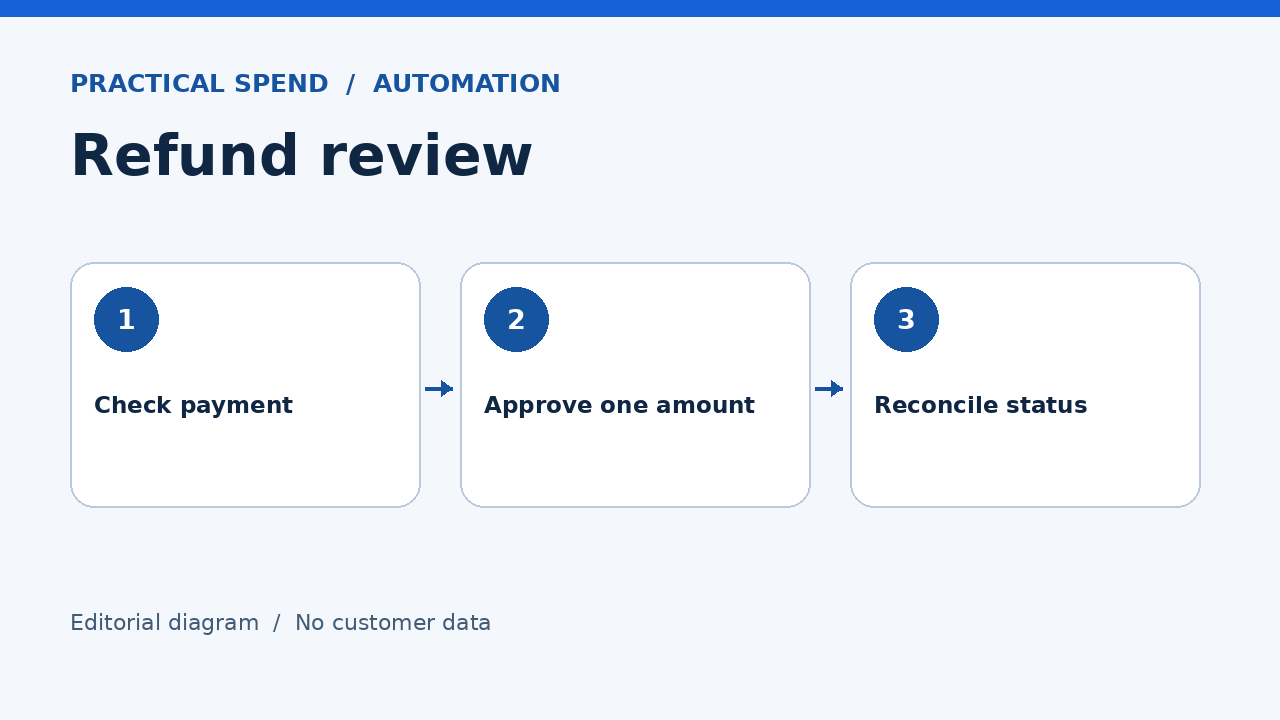
    Which parts of a refund can you automate? Let the workflow collect evidence and prepare a proposed action. Require approval for the exact payment and amount, then reconcile the processor’s result before closing the case. The processor used by your business determines the available actions.

    Stripe is used here only as a documentation example, not a recommendation that it is available to every Korea-based business. Check your payment provider’s availability, contract terms, and refund fees before implementation.

    The diagram shows checking the original payment, approving one amount, and reconciling the refund status.
    AI-assisted original editorial diagram. This is not a product screenshot; it contains no customer data.

    Prepare the review case

    Start from a support case or approved internal request. Fetch the original payment by provider reference and inspect prior refunds and the remaining eligible amount. Show the reviewer the amount, currency, reason, and whether it is a partial or full refund. Keep credentials and card information out of the case and notification. Use an internal case link and limit who can open it.

    Bind the approval to a single operation

    Record the reviewer and the exact payment and amount approved. A change to any of those inputs requires review again. Recheck the provider’s remaining refundable amount before submitting, since a refund may have been issued elsewhere. Give the approved operation a stable ID and persist it before submitting. Where supported, use the processor’s idempotency mechanism for the same operation. Stripe documents idempotent POST requests and how keys behave. Check the key lifetime and provider guidance before retrying an ambiguous result. Never retry a timed-out request as a new refund until the earlier result has been checked.

    Reconcile provider status

    A request accepted by the API may still be pending or later fail. Record the refund reference and read the current status from the payment provider. If the result is unclear, keep the case open for review. Confirm the actual outcome before closing the support case or sending a message that says the refund is complete. Do not send a second refund just because the accounting entry is missing.

    Test before enabling real refunds

    Use an approved test environment, fictional payments, and a disabled customer message route. Exercise a partial refund, duplicate approval, timeout, and a failed or pending outcome. Review that the workflow produces a single intended refund and the correct case status.

    Official sources and evidence

    Checked November 10, 2026 (KST).

    Verification notes

    Evidence confirmed: The claims mapped above reflect the cited official documentation or legal text.
    Editorial recommendation: Workflows, checklists, and examples are proposed operating practices.
    Hands-on testing: None. Examples are synthetic.
    Unverified: Stripe is a documentation example. No processor was connected, no funds moved, and local provider availability, contract terms, and refund fees remain unverified.

  • Booking Automation With Google Calendar: Prevent Conflicting Confirmations

    Booking Automation With Google Calendar: Prevent Conflicting Confirmations

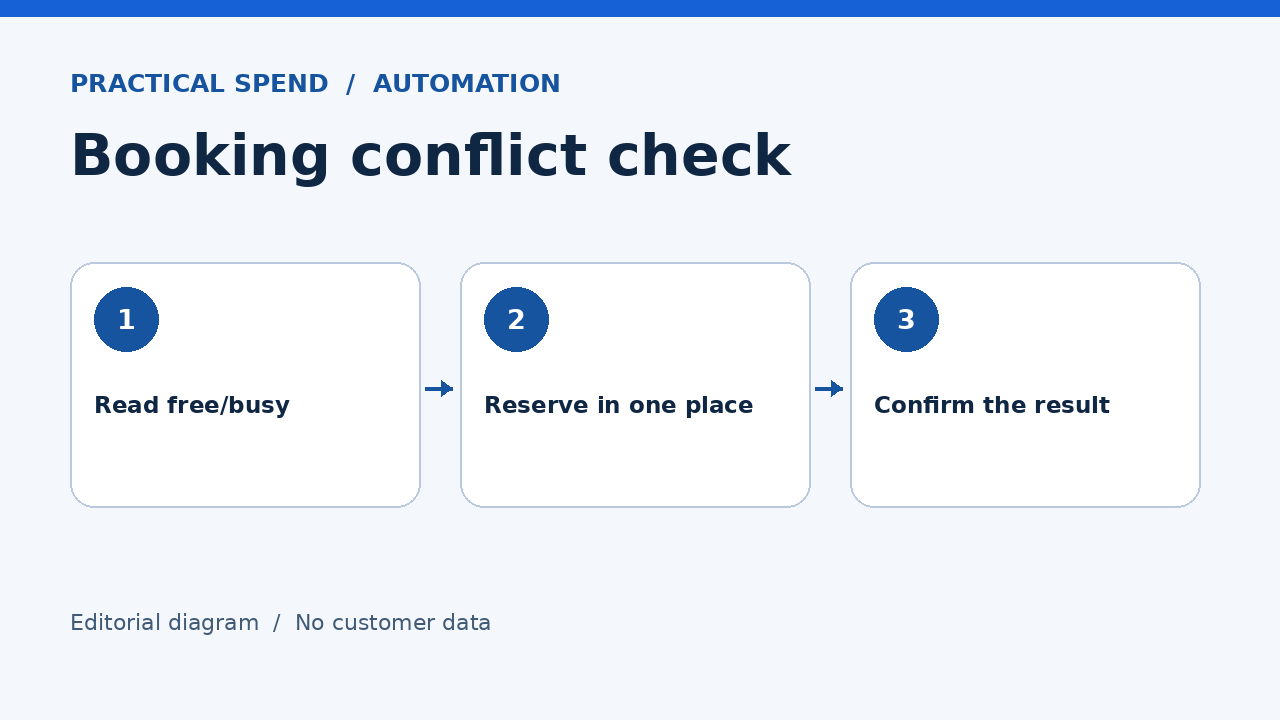
    Can Google Calendar availability alone prevent two customers from booking the same slot? Use availability as a check, then reserve the slot in one authoritative system before confirming. Two requests can both see the same free period if they check before either writes.

    The diagram shows reading calendar availability, reserving a slot, and confirming the result.
    AI-assisted original editorial diagram. This is not a product screenshot; it contains no customer data.

    Define what counts as a slot

    Identify the resource, start time, end time, and any buffer for setup or cleanup. Specify whether the slot covers a room, employee, or service bay. For a Korea-based schedule, convert and display times consistently using Asia/Seoul and include the time zone in confirmation previews. Keep a booking reference and a minimal display title in a broadly shared calendar.

    Query availability and inspect errors

    Google’s Calendar API documents a Freebusy query that returns busy intervals and can include errors for individual calendars. Treat a calendar error as an unknown result. If multiple resources are required, all relevant calendars must return usable results. When different systems own availability, decide which source wins and how changes made by hand are synchronized.

    Reserve once and mirror the result

    Use an atomic reservation in the booking system. Fixed slots can use a unique resource-and-slot key. Variable-duration bookings need a mechanism that checks and prevents interval overlaps. Once a reservation is confirmed, insert the mirror event and store the returned event ID. Google documents event creation separately from Freebusy. Where a mirror write times out, reconcile the event before retrying. If the calendar mirror is essential to operations and fails, send the case to staff and hold the customer confirmation.

    Test the race, not just a free slot

    Submit two fictional requests for the same resource and time. Verify that only one receives a confirmed reservation. Try a calendar error, a failed mirror write, and a duplicate request. Use a private test calendar and suppress invites and customer sends throughout the exercise.

    Official sources and evidence

    Checked November 10, 2026 (KST).

    Verification notes

    Evidence confirmed: The claims mapped above reflect the cited official documentation or legal text.
    Editorial recommendation: Workflows, checklists, and examples are proposed operating practices.
    Hands-on testing: None. Examples are synthetic.
    Unverified: No booking system, concurrent request, calendar connector, or invitation was tested.

  • Make Webhook Order: Keep Late Updates From Reversing an Order

    Make Webhook Order: Keep Late Updates From Reversing an Order

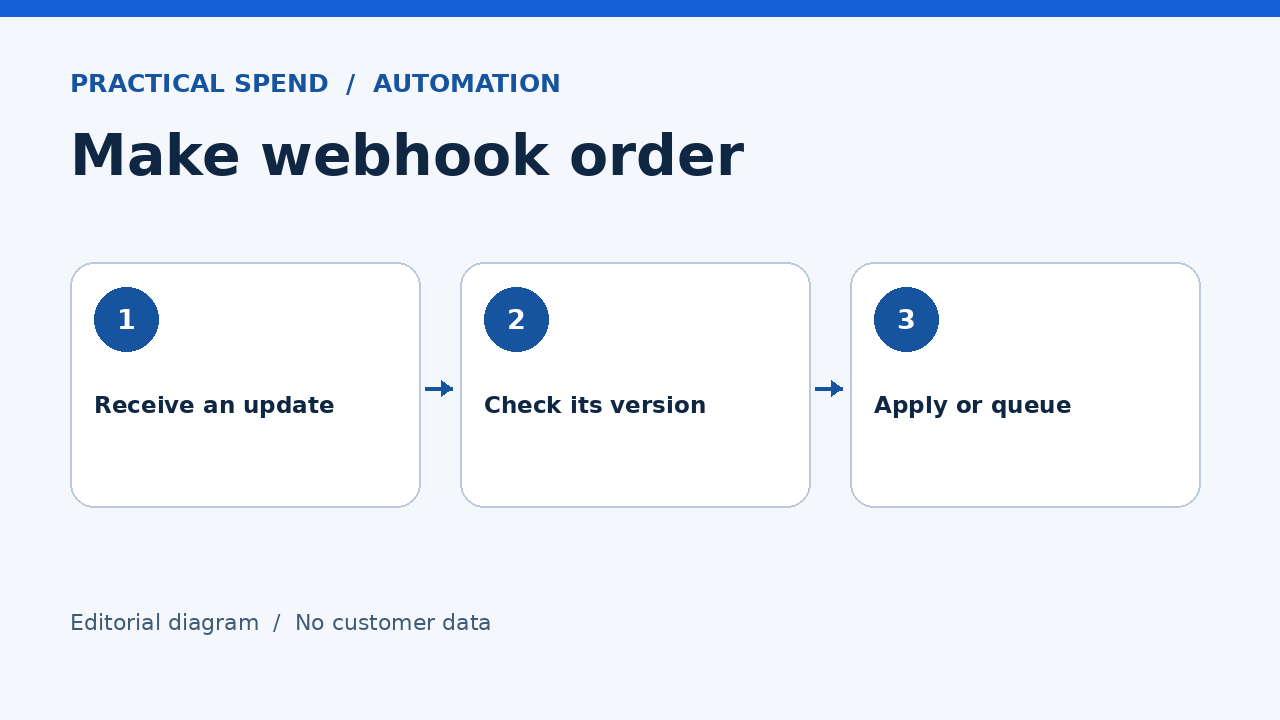
    How do you keep an old webhook from changing a shipped order back to “paid”? Compare the incoming update with the current source state or a documented event revision before writing. Make can process arrivals one at a time, but network delivery can still put an older update behind a newer one.

    Three steps show receiving an order update, checking its version, and applying or queuing it.
    Original AI-assisted editorial workflow diagram. Not a product screenshot; contains no customer data.

    Decide which system owns order status

    Choose the store or order system as the authority. Identify an immutable order reference and, if supported, a trustworthy sequence or revision issued by the source. Record the last applied revision with the destination order. Compare revisions only within the same order and source. If the source has no reliable revision, fetch the current order through an authorized connection and use that result, or queue the event for review. A receipt timestamp only tells you when Make received the message.

    Apply the update safely

    Reject an older revision and acknowledge a revision already handled. For a newer revision, validate whether the state change makes sense. Keep the revision and status together so overlapping writes cannot advance one without the other. Use a conditional write or a single authoritative writer when your destination supports it. If you cannot prevent concurrent writes in the destination, keep the workflow in review mode for consequential changes.

    Make documents that its scenario setting to process data in order serializes webhook runs. It can also pause subsequent runs when there are unresolved incomplete executions. Decide who checks the stalled queue and how they confirm which order states need recovery before releasing it. Keep the logs to order references and operational fields where possible.

    Test reordered and repeated deliveries

    In a synthetic environment, deliver revision 12 before revision 11. Repeat revision 12 and check the final destination state and write history. Simulate an error after a write and confirm that your recovery procedure inspects the stored state before applying an update again. Leave live notifications, shipment creation, and payment steps disabled during the exercise.

    Official sources and evidence

    Checked November 10, 2026 (KST).

    Verification notes

    Evidence confirmed: The claims mapped above reflect the cited official documentation or legal text.
    Editorial recommendation: Workflows, checklists, and examples are proposed operating practices.
    Hands-on testing: None. Examples are synthetic.
    Unverified: Store API revision semantics, destination concurrency controls, and the Make account limits were not tested.